
Edit your WP header by asking
CMSHands, a free WordPress plugin, adds a chat to your dashboard. Type “Add our phone number, 555-0142, to the header.” See it first; undo in one click.
Works on block themes: you'll see Appearance › Editor in your dashboard. How to tell
Works on block themes: you'll see Appearance › Editor in your dashboard. How to tell
Works on sites hosted at





Watch it do this on a real site
You ask
Add our phone number, 555-0142, to the header.
Add our phone number, 555-0142, to the header.

- Looking at your themes
- Looking at your theme’s colours and sizes
- Reading your header
- Reading your footer
- Preparing the change for your OK
- Previewing your header
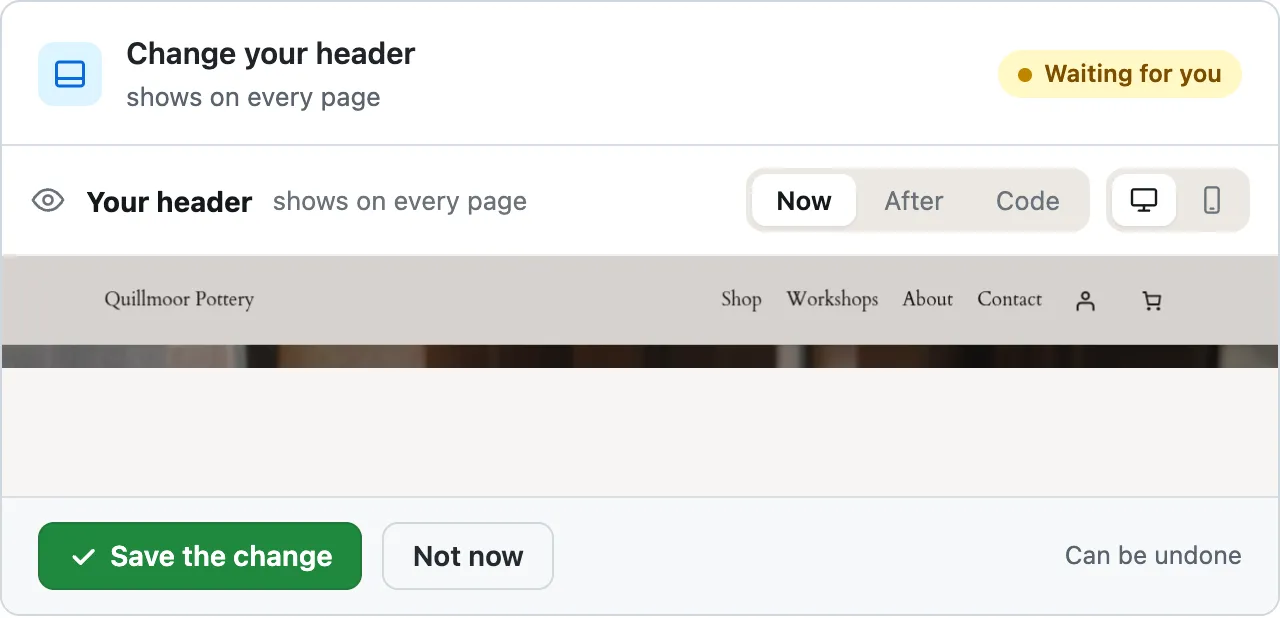
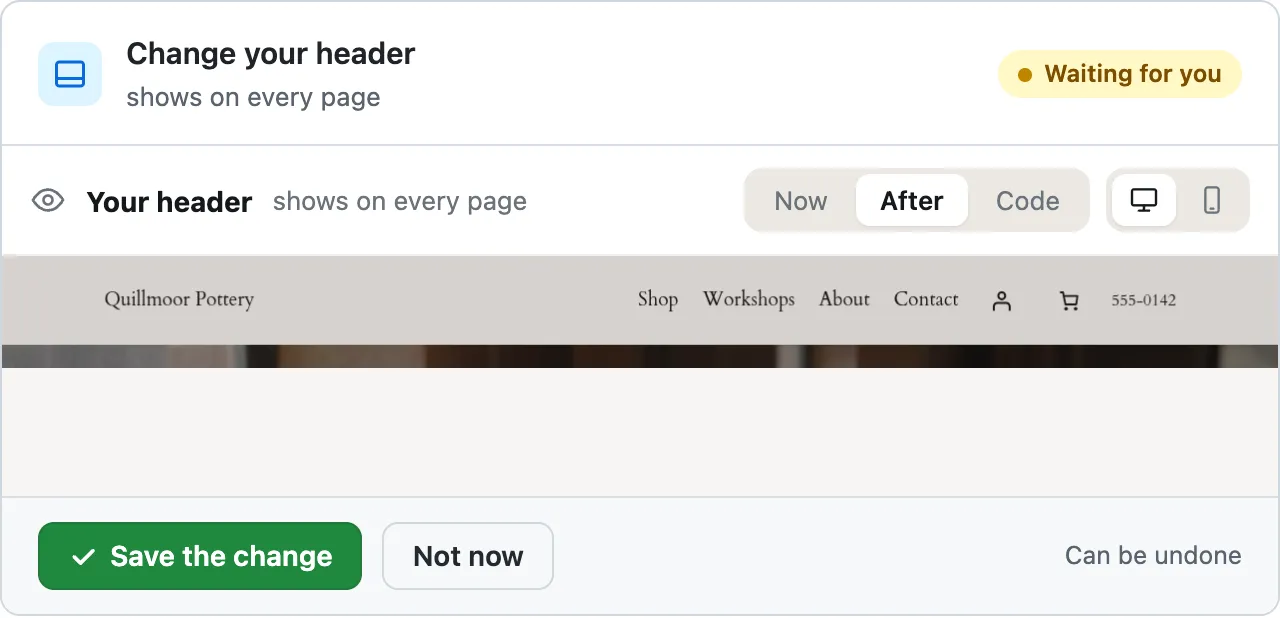
- <!-- wp:group {"layout":{"type":"flex","flexWrap":"wrap","justifyContent":"left"}} -->
- <div class="wp-block-group">
- <!-- wp:navigation {"layout":{"type":"flex","justifyContent":"right","orientation":"horizontal"},"style":{"spacing":{"margin":{"top":"0"},"blockGap":"var:preset|spacing|20"},"layout":{"selfStretch":"fit","flexSize":null}},"metadata":{"ignoredHookedBlocks":["woocommerce/customer-account"]}} /--><!-- wp:woocommerce/customer-account {"displayStyle":"icon_only","iconStyle":"line","iconClass":"wc-block-customer-account__account-icon"} /--><!-- wp:woocommerce/mini-cart /-->
- <!-- wp:navigation {"layout":{"type":"flex","justifyContent":"right","orientation":"horizontal"},"style":{"spacing":{"margin":{"top":"0"},"blockGap":"var:preset|spacing|20"},"layout":{"selfStretch":"fit","flexSize":null}},"metadata":{"ignoredHookedBlocks":["woocommerce/customer-account"]}} /--><!-- wp:woocommerce/customer-account {"displayStyle":"icon_only","iconStyle":"line","iconClass":"wc-block-customer-account__account-icon"} /--><!-- wp:woocommerce/mini-cart /--><!-- wp:paragraph {"fontSize":"small"} -->
- <p class="has-small-font-size">555-0142</p>
- <!-- /wp:paragraph -->
- </div>
- <!-- /wp:group -->
- </div>
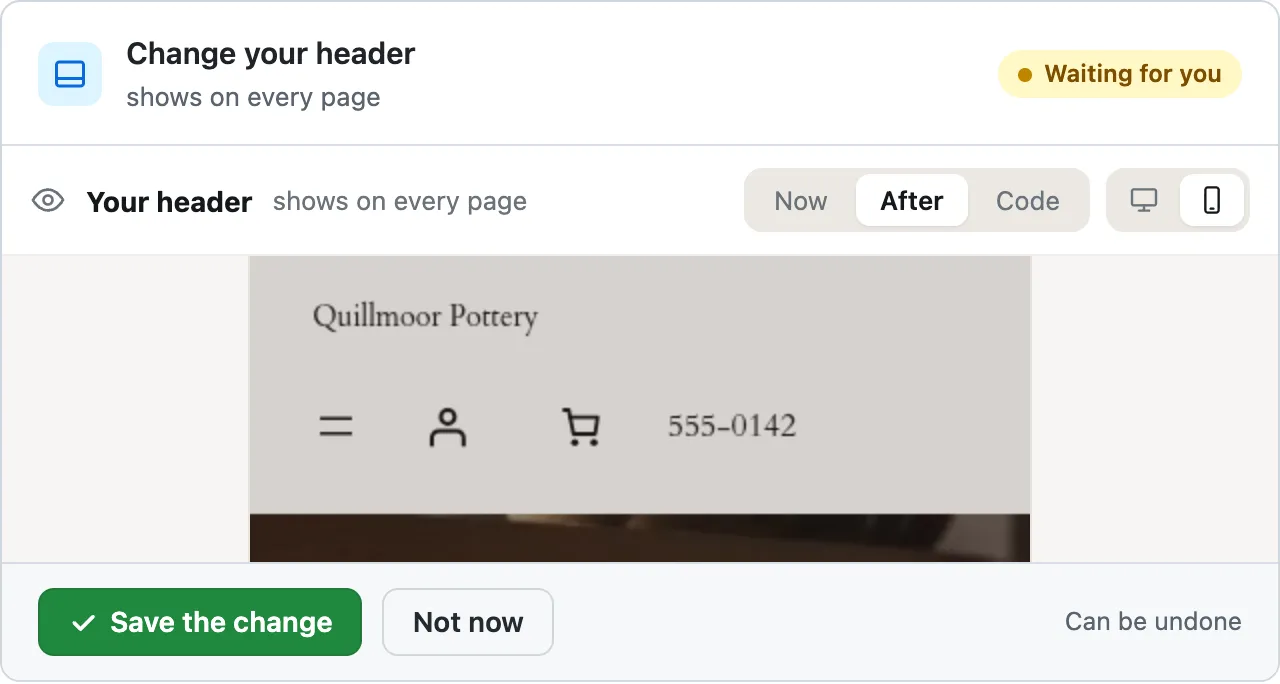
I'll look at your header first.
It's ready for you to review — on a narrow screen the header now wraps onto two rows, with the number after the cart icon.
Add our phone number, 555-0142, to the header.
- <!-- wp:group {"layout":{"type":"flex","flexWrap":"wrap","justifyContent":"left"}} -->
- <div class="wp-block-group">
- <!-- wp:navigation {"layout":{"type":"flex","justifyContent":"right","orientation":"horizontal"},"style":{"spacing":{"margin":{"top":"0"},"blockGap":"var:preset|spacing|20"},"layout":{"selfStretch":"fit","flexSize":null}},"metadata":{"ignoredHookedBlocks":["woocommerce/customer-account"]}} /--><!-- wp:woocommerce/customer-account {"displayStyle":"icon_only","iconStyle":"line","iconClass":"wc-block-customer-account__account-icon"} /--><!-- wp:woocommerce/mini-cart /-->
- <!-- wp:navigation {"layout":{"type":"flex","justifyContent":"right","orientation":"horizontal"},"style":{"spacing":{"margin":{"top":"0"},"blockGap":"var:preset|spacing|20"},"layout":{"selfStretch":"fit","flexSize":null}},"metadata":{"ignoredHookedBlocks":["woocommerce/customer-account"]}} /--><!-- wp:woocommerce/customer-account {"displayStyle":"icon_only","iconStyle":"line","iconClass":"wc-block-customer-account__account-icon"} /--><!-- wp:woocommerce/mini-cart /--><!-- wp:paragraph {"fontSize":"small"} -->
- <p class="has-small-font-size">555-0142</p>
- <!-- /wp:paragraph -->
- </div>
- <!-- /wp:group -->
- </div>
- Changing your header
- Checking the change
Done. I checked afterwards, and it now says "555-0142".

- Reverting the change
- Checking the change
Undone. I checked afterwards, and it's back the way it was.
A real run on our test site, Quillmoor Pottery (WP 7.1.3, Twenty Twenty-Four), . From asking to done, it took 54 seconds.
- Ask for a phone number, a short line or new words in your header. On a block theme it adds them in your theme’s own text sizes.
- You check the new header at full width and at phone size first, since one more item can push a header onto two rows.
- Changed your mind? Undo takes out what it added, then reads the header again to check.
Do this on your own site
That's the whole job. The plugin is free: 3 changes to try it, no account. Nothing changes until you press the button, and an undo within 24 hours gives the change back.
How to edit the header in WordPress yourself
In WordPress, go to Appearance › Editor › Patterns › Header, open the header, add or change the words where they belong, then press Save.
Checked on WP 7.1,
1. Go to Appearance › Editor in your dashboard. Only Customize there? Your theme is an older (classic) one: see the note after the steps.
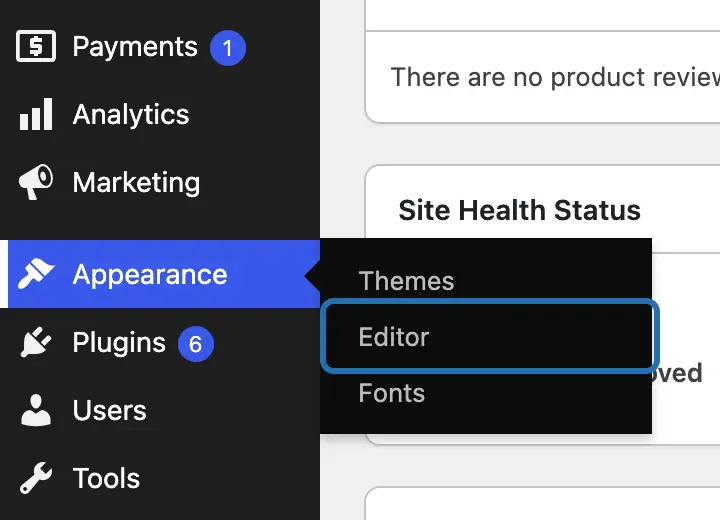
2. The Design list opens on the left. Pick Patterns, the item under Navigation.
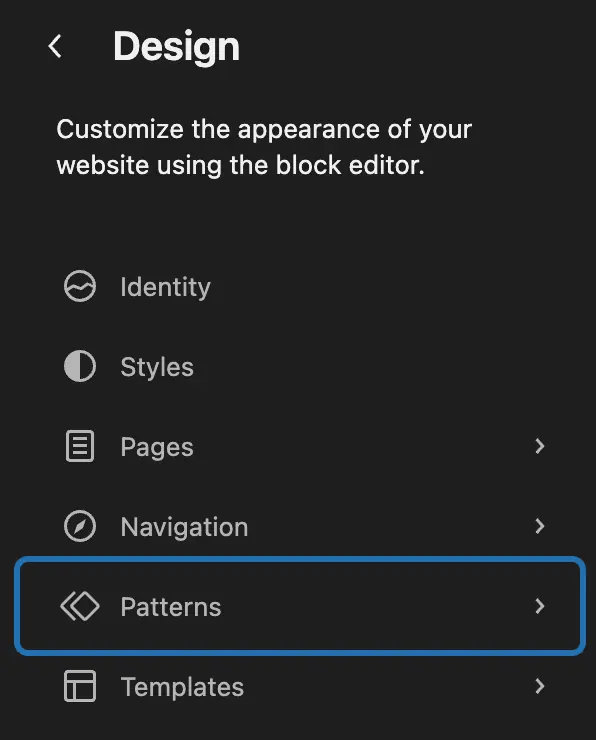
3. Pick Header, second in the list. Then click the big preview named Header to open it in the editor.
Show the picture
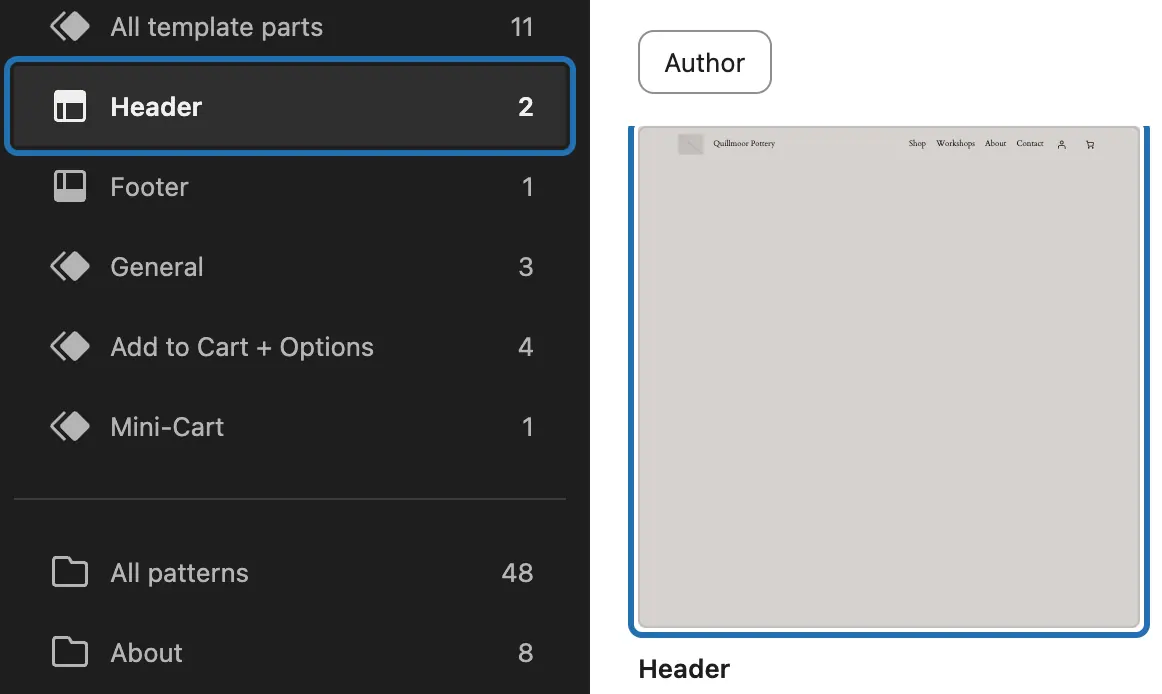
4. A welcome box may pop up: press Get started. Then click the item at the right end of your header. Ours is a cart icon.
Show the picture
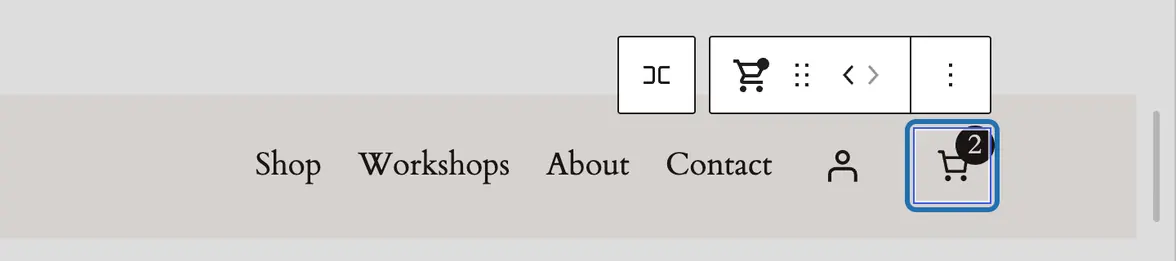
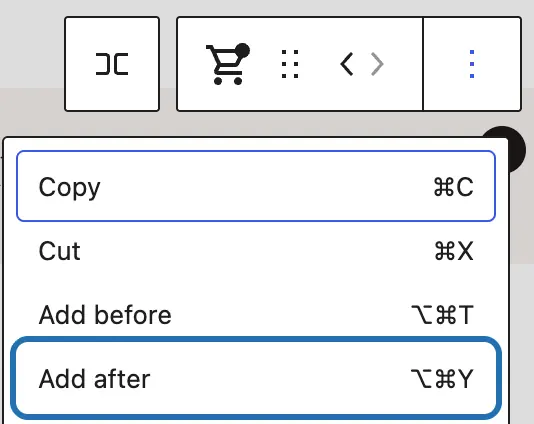
5. A small toolbar shows above it. Press its ⋮ (Options) button, then Add after. An empty spot for text opens next to the cart.
Show the picture
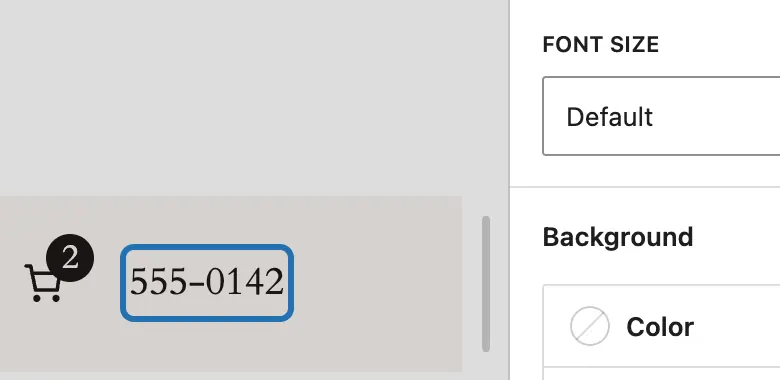
6. Type your number there. It starts at the normal text size. For smaller text, pick a size under Font size on the right.
Show the picture
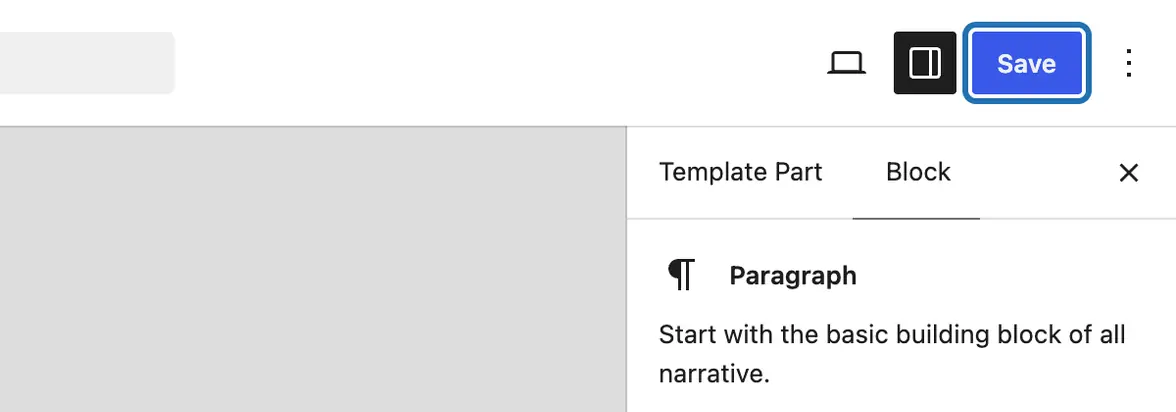
7. Press the blue Save button in the top right corner. Nothing reaches your site until you do.
Show the picture
8. Open two of your pages in a new tab. Each header should now end with your number. Ours is below, in the small size.
Show the picture



Older (classic) themes build the header from their own files, with no Editor screen. Change the name and logo in Appearance › Customize › Site Identity, and the links in Menus (some themes add a Header panel there too). CMSHands can’t add to a classic theme’s header yet.
Headers fill up fast. On a phone, ours took 1 row before the number and 2 rows after: the name on top, then the menu button, the icons and the number. So check the phone view before you save.
Or ask for it in the chat
“Add our phone number, 555-0142, to the header.”
Why it won't wreck your site
- Nothing changes until you press the button. Every change comes as a card that names it. Nothing happens until you press the button or Not now.
- You see it first. Old words in red, new words in green. For layout, before-and-after pictures on a computer and a phone.
- One click undoes it. When something can't be undone, like deleting a page or a plugin, the card says so before you press.
Where CMSHands stops
- Older (classic) themesA classic theme draws its header from its own files and Customize settings. It can’t change those yet.
- The links in your menuYour menu’s links are stored apart from the header, so changing them is a job of its own. We’ve run it on a block-theme menu: see edit a menu.
- A new logoSend the new logo in the chat and it goes on after your OK. It can’t make one for you.
- Headers made with a page builderOn an Elementor header it changes words, links and pictures. Headers made with Divi or Beaver Builder stay as they are.
- Tracking codesA tracking code for visitor stats is code, not words or blocks, and it can’t add code yet.
More it can do
- Header and footer:
Add a link to your menu
“Add a "Workshops" link to my footer menu, pointing to the Workshops page.”
It took 26 seconds on our test site. - Header and footer:
Keep your header on screen
“Make my header stay at the top of the screen when people scroll.”
It took 2 minutes 9 seconds on our test site. - Header and footer:
Change your footer
“Add our opening hours to the footer: Tue–Sat, 10am to 5pm.”
It took 39 seconds on our test site.
Questions about your header
Where is the header in WordPress?
In a block theme it’s under Appearance › Editor › Patterns › Header, where it opens on its own, away from your pages. A classic theme has no such screen: change the name and logo in Appearance › Customize › Site Identity, and the links in Menus. Either way, one header serves the whole site.
Will changing the header change it on every page?
Yes, on every page whose template includes it. On our test site that’s every page except the checkout, which the shop plugin gives a header of its own. Before you press, the CMSHands card says how far the change reaches; ours read “shows on every page”.
How do I remove the header in WordPress?
Delete it from the template your pages use. On a block theme, go to Appearance › Editor › Templates and open that template. Click the header, choose Delete from its ⋮ menu, then press Save. Pages using that template lose their header. We haven’t tested removing a header with CMSHands yet.
Will it work with my theme?
Yes, if it’s a block theme: your dashboard shows Appearance › Editor. How to tell. On an older (classic) theme, or a header made with Divi or a theme’s own header builder (Astra’s, for example), it can’t change the header yet. On an Elementor header it changes the words, links and pictures. It can still change the words on your pages and posts.
Can I undo a header change?
Yes, with one press of Undo on the card. In our test run it took 555-0142 back out, then read the header again to check. The card showed what it had put back, with the number’s lines in red.
Is it free to change my header with CMSHands?
To start, yes: 3 changes with no account, then 10 a month once you add your email. Questions are free, up to 30 a day.
Written by the CMSHands team. First published .
Try it on your own header
- 1. Download the plugin.A free zip file
- 2. Upload and activate it.Plugins › Add Plugin › Upload Plugin
- 3. Give CMSHands a task.Press Start working, then ask in your words
Works best on WP 6.3 or newer with PHP 8.0 or newer. What works on older sites