
Make your WP header sticky by asking
CMSHands, a free WordPress plugin, adds a chat to your dashboard. Ask it to keep your header on screen as people scroll. See it first; undo takes it off.
Works on block themes: you'll see Appearance › Editor in your dashboard. How to tell
Works on block themes: you'll see Appearance › Editor in your dashboard. How to tell
Works on sites hosted at





Watch it do this on a real site
You ask
Make my header stay at the top of the screen when people scroll.
Make my header stay at the top of the screen when people scroll.

- Looking at your themes
- Looking at your theme’s colours and sizes
- Reading your header
- Reading your header
- Reading a file on your site
- Reading a file on your site
- Reading one of your pages
- Looking something up in the database
- Preparing the new styles for your OK
- Previewing the change
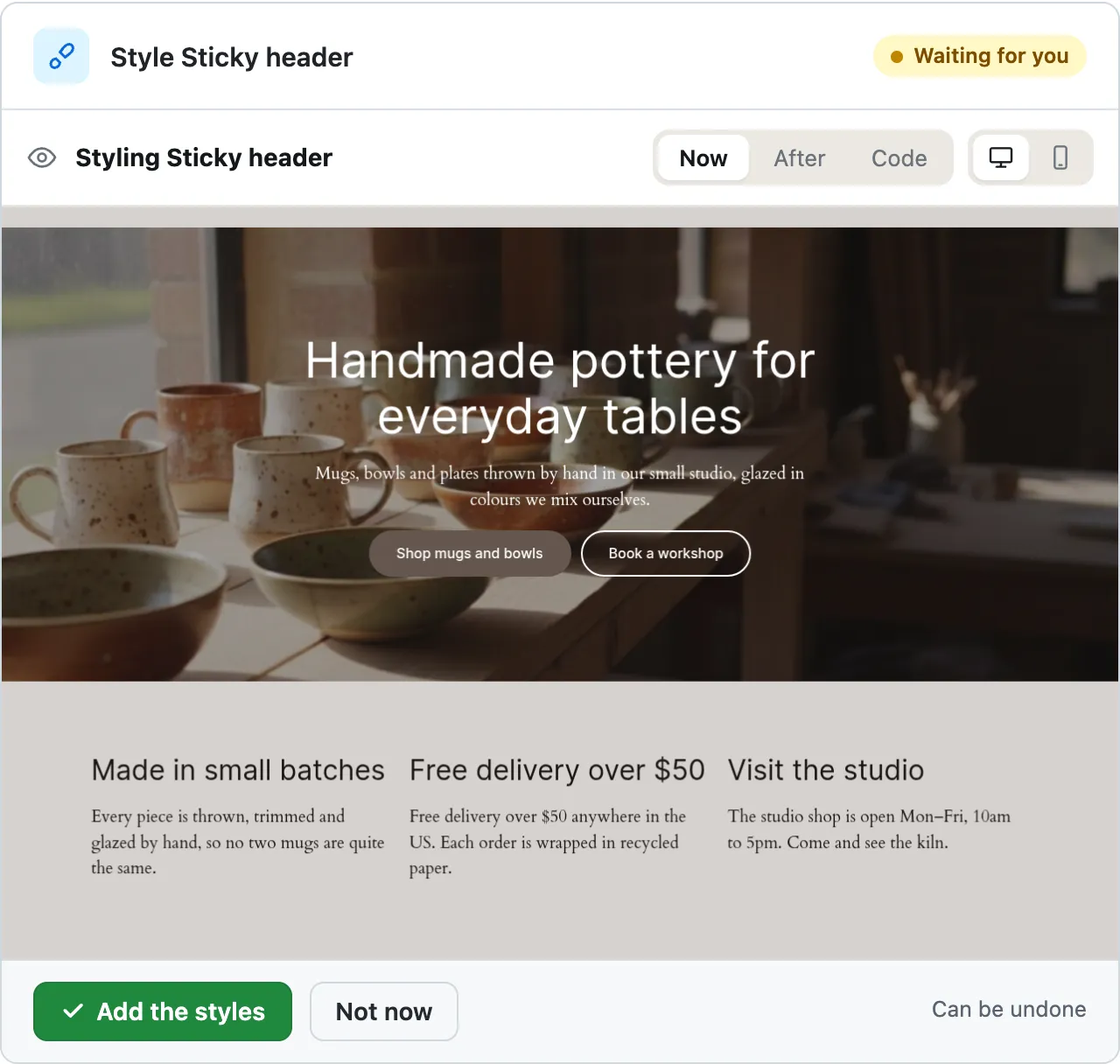
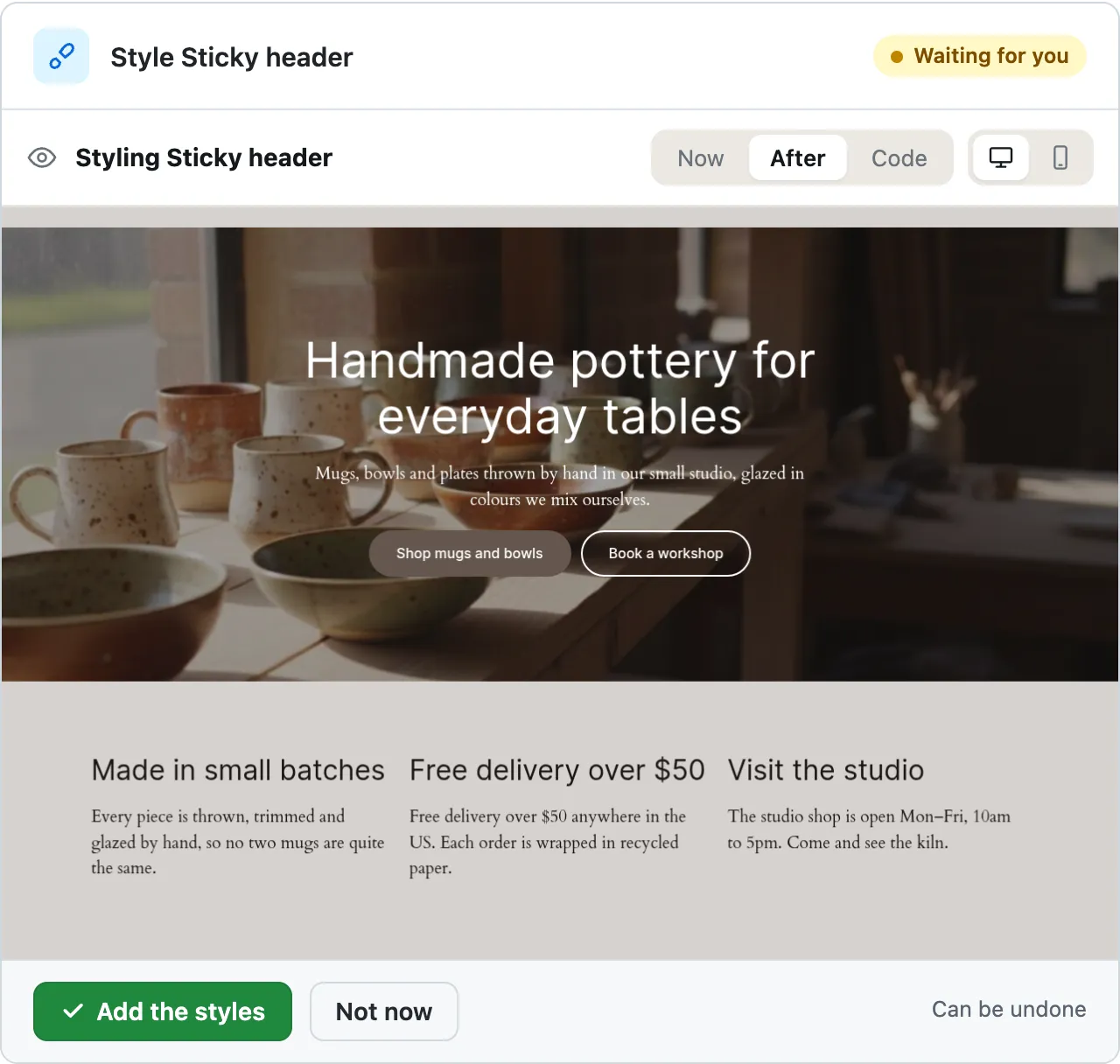
- /* CMSHands: Sticky header */
- .wp-block-template-part {
- position: sticky;
- top: 0;
- z-index: 100;
- }
- .wp-block-template-part:not(:first-child) {
- position: static;
- z-index: auto;
- }
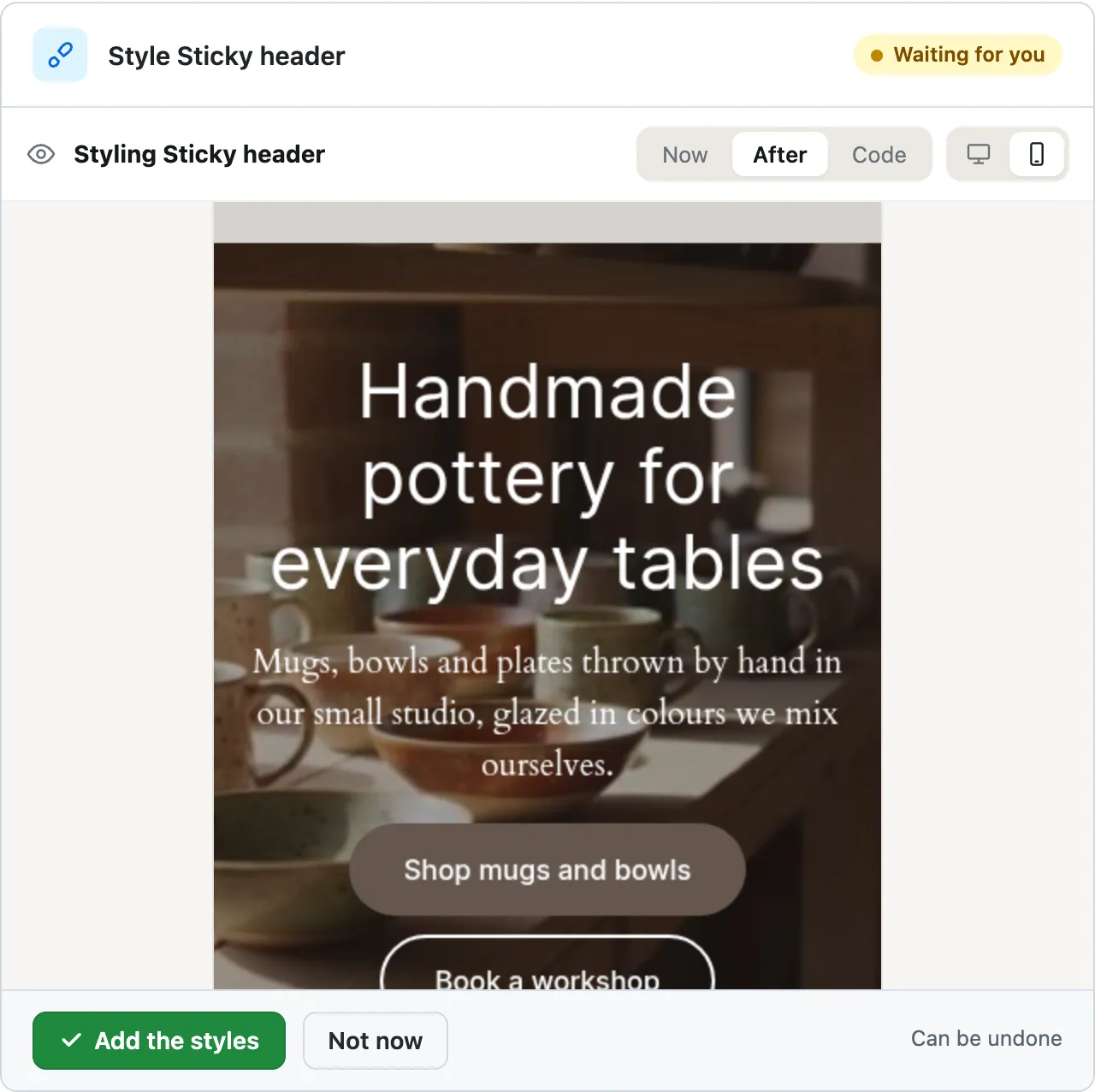
Styling Sticky header
Ready for you to review. One caveat: these previews are scrolled past the header, so the sticking itself only shows once you scroll on the live page.
- Adding styles to your site
- Checking the change
Done. I checked afterwards, and the change is in place.
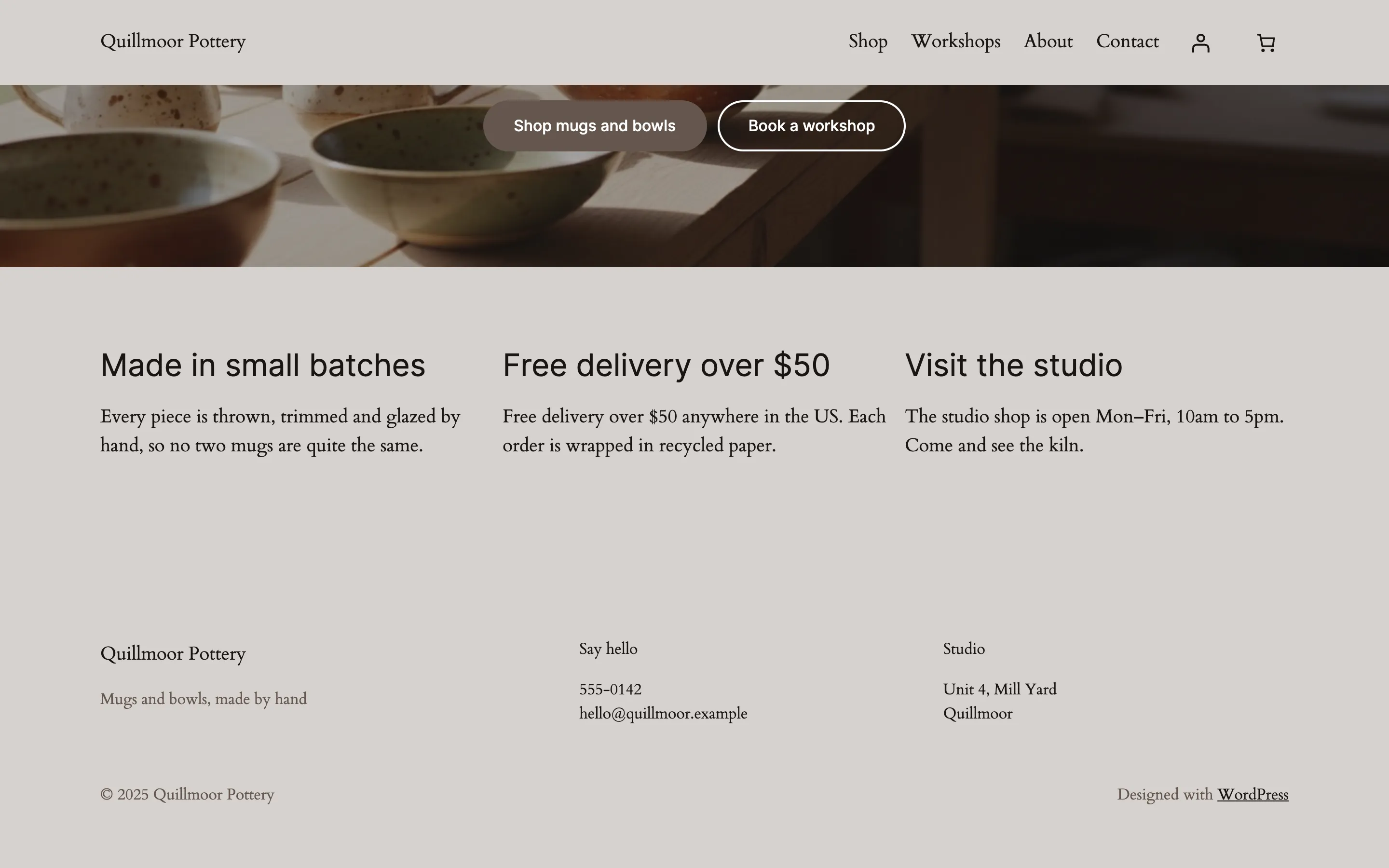
- Reverting the change
- Checking the change
Undone. I checked afterwards, and it's back the way it was.
A real run on our test site, Quillmoor Pottery (WP 7.1.3, Twenty Twenty-Four), . From asking to done, it took 2 minutes 9 seconds.
- Ask in your own words. It reads your theme and header, then writes CSS, the rules that set how your site looks.
- Before anything changes, a card shows Now, After and the code, on a computer and on a phone.
- Undo takes the styles off. In our run the header scrolled away with the page again.
More it does here (3)
- It tells you the previews are scrolled past the header, so you check the sticking on your live page.
- It adds styles only. Your header's words, menu and blocks stay as they are.
- In our run the card came up about 115 seconds after asking. Adding the styles took about 5 seconds more.
Do this on your own site
That's the whole job. The plugin is free: 3 changes to try it, no account. Nothing changes until you press the button, and an undo within 24 hours gives the change back.
How to make your header sticky in WordPress yourself
In WordPress, open Appearance › Editor, wrap the header in a Group block, set its Position to Sticky, then press Save in each template.
Updated , checked on WP 7.1,
1. In your dashboard, go to Appearance › Editor. No Editor there? Your theme is an older one: see the note under these steps.
2. Click Templates, then a template your pages use, such as Pages. Click its preview to open it.
3. Open Document Overview, the icon of 3 lines at the top left, and click Header in the list.
4. In the toolbar above the header, click Options, the 3 dots, then Group. The header now sits inside a group.
5. With the group still selected, find Position in the sidebar on the right and choose Sticky.
6. Press Save at the top right. If WP lists the changes, press Save again.
7. Do the same in each template that shows your header, such as Single Posts. Then visit your site and scroll down.
No Editor, only Appearance › Customize? Then your theme is an older (classic) one. Look for a sticky or fixed header option in Customize or on the theme's own settings page. CMSHands can't add the CSS there itself yet. It can write it for you to paste into Appearance › Customize › Additional CSS.
WP also offers Sticky on the group inside your header part, but there it can scroll away with the page. The header part wraps that group, so it has no room to stay put. Set it on a group around the header part, as in step 4.
Or ask for it in the chat
“Make my header stay at the top of the screen when people scroll.”
Why it won't wreck your site
- Nothing changes until you press the button. Every change comes as a card that names it. Nothing happens until you press the button or Not now.
- You see it first. Old words in red, new words in green. For layout, before-and-after pictures on a computer and a phone.
- One click undoes it. When something can't be undone, like deleting a page or a plugin, the card says so before you press.
What it won't do here
- Older (classic) themesIt can't add CSS on a classic theme. It writes the CSS and tells you where to paste it: Appearance › Customize › Additional CSS.
- Seeing it stick before you pressThe previews on the card are scrolled past the header, so they don't show the sticking. You see it on your live page, and undo takes it off.
- A header that shrinks or hides as you scrollThat needs a script, and it can't add scripts yet. It keeps the header as it is, at the top.
- Headers made with a page builderWe haven't tried it on a header made by Elementor, Divi or another page builder, so this page doesn't promise it. A page builder lays out pages its own way.
More it can do
- Header and footer:
Add a link to your menu
“Add a "Workshops" link to my footer menu, pointing to the Workshops page.”
It took 26 seconds on our test site. - Words and pages:
Rename or add a blog category
“Rename the blog category "News" to "Studio news" and add a new category "Glazes".”
It took 15 seconds on our test site. - Words and pages:
Copy a page
“Make a copy of the About page as a draft called "About (new)".”
It took 16 seconds on our test site.
Questions
What is a sticky header in WordPress?
It's a header that stays at the top of the screen while people scroll down. Your name and menu stay in reach on long pages. On a block theme, it's the Sticky choice under Position for a group block in the Site Editor.
How do I make my header sticky in WordPress?
On a block theme, put the header part inside a group in the Site Editor and set that group's Position to Sticky, as in the steps above. On an older theme, look for a sticky or fixed header option in Appearance › Customize or your theme's own settings.
Why doesn't my sticky header stay at the top?
Most often the Sticky setting is on the group inside the header part. The header part wraps that group, so it has no room to stay put and scrolls away. Wrap the header part itself in a group in the template, and make that group sticky.
Will it work with my theme?
Yes, if it's a block theme: your dashboard shows Appearance › Editor. How to tell. On an older (classic) theme it can't add the CSS itself, but it writes it for you to paste into Appearance › Customize › Additional CSS. We haven't tried it on a header made with a page builder such as Elementor or Divi.
Can I undo it?
Yes. Press Undo on the card. In our test run it took the styles off, checked the page and said: “Undone. I checked afterwards, and it's back the way it was.” Doing it yourself, set Position back to Default and save.
Is it free?
To start, yes: 3 changes with no account, then 10 a month once you add your email. Questions are free, up to 30 a day.
Written by the CMSHands team. First published .
Try it on your own header
- 1. Download the plugin.A free zip file
- 2. Upload and activate it.Plugins › Add Plugin › Upload Plugin
- 3. Give CMSHands a task.Press Start working, then ask in your words
Works best on WP 6.3 or newer with PHP 8.0 or newer. What works on older sites