
Add custom CSS to WP, with a preview
CMSHands, a free WordPress plugin, adds a chat to your dashboard. Type “Give the search box on my Shop page rounded corners…” See the CSS first. Undo in one click.
Block themes only. On an older theme it writes the CSS for you to paste. How to tell
Block themes only. On an older theme it writes the CSS for you to paste. How to tell
Works on sites hosted at





Watch it do this on a real site
You ask
Give the search box on my Shop page rounded corners, in the site's brown.
Give the search box on my Shop page rounded corners, in the site's brown.

- Looking for what you meant
- Looking at your theme’s colours and sizes
- Reading one of your pages
- Preparing the new styles for your OK
- Previewing the change
- Preparing the new styles for your OK
- Previewing the change
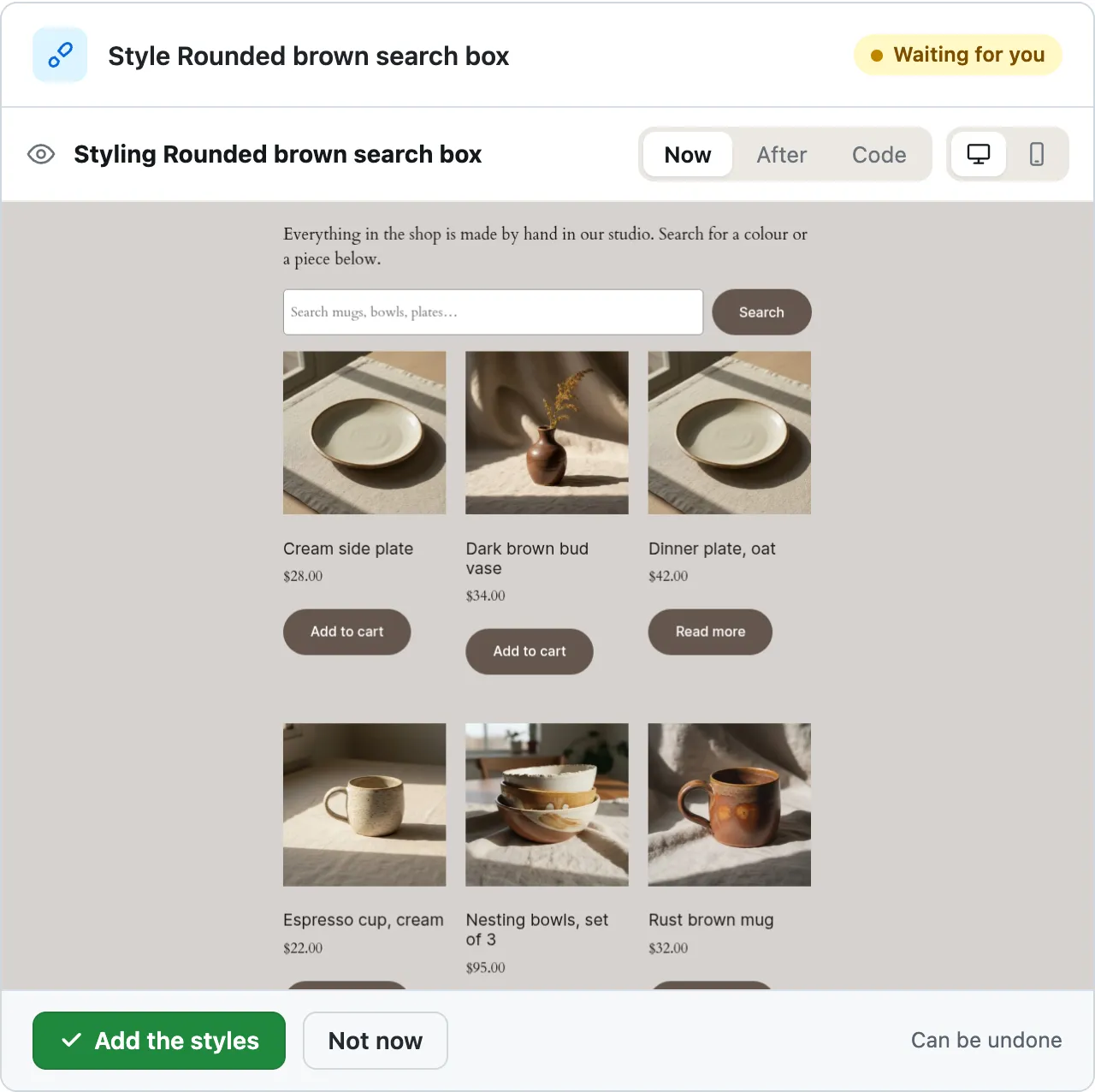
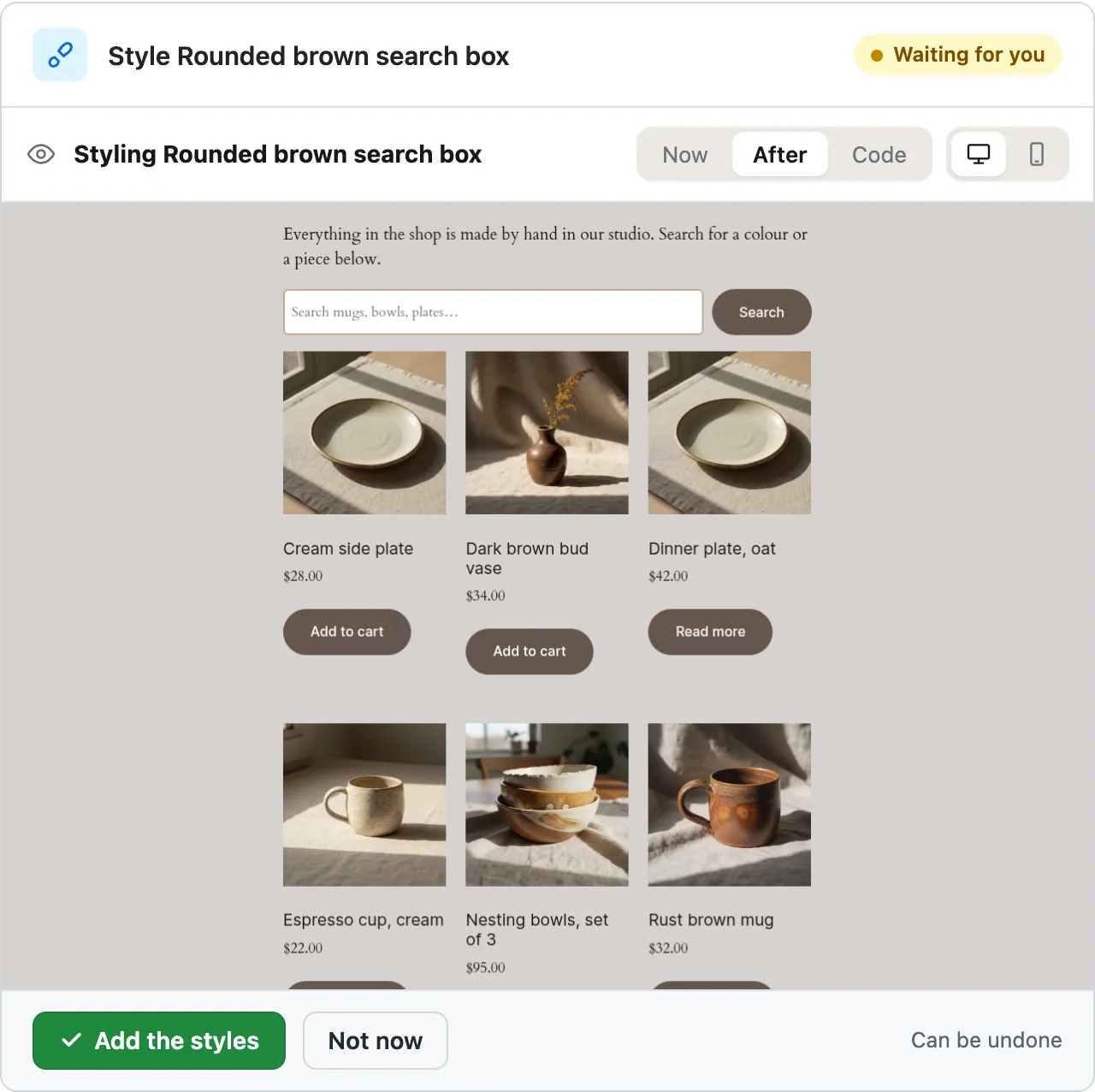
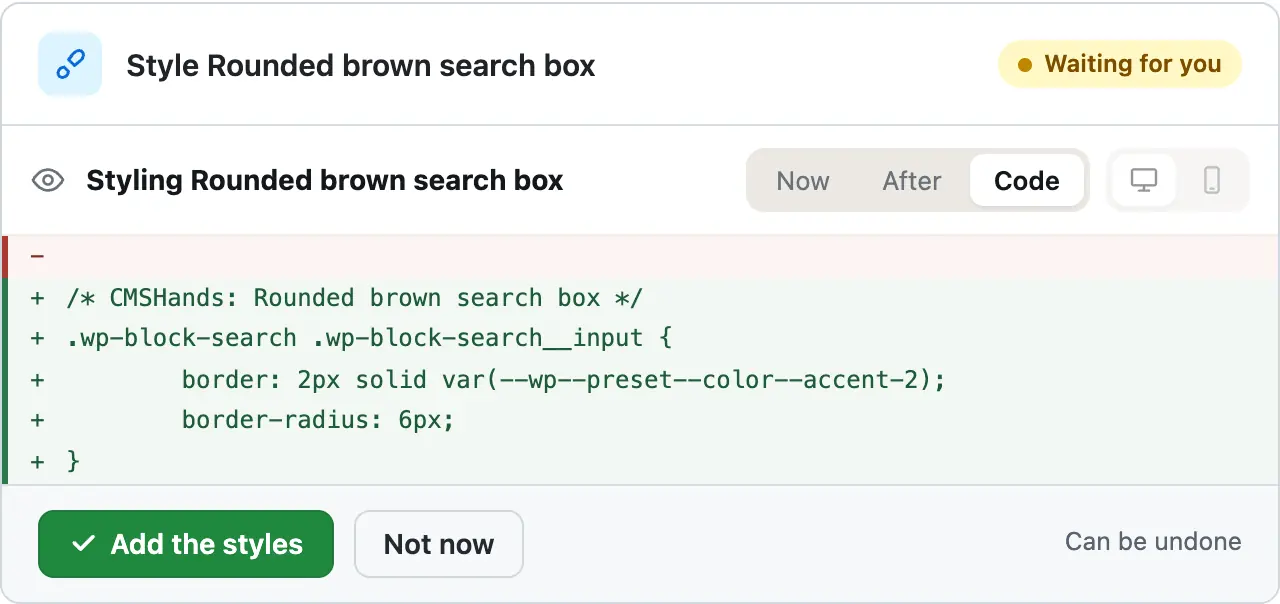
- /* CMSHands: Rounded brown search box */
- .wp-block-search .wp-block-search__input {
- border: 2px solid var(--wp--preset--color--accent-2);
- border-radius: 6px;
- }
Styling Rounded brown search box
I'll look at your Shop page and the theme's design first.
The button came out as a squared-off box, out of step with the pill-shaped buttons elsewhere on the page. Fixing that. …
- Adding styles to your site
- Checking the change
Done. I checked afterwards, and it now says "/* CMSHands: Rounded brown search box */ .wp-block-search .wp-block-search__input { border: 2px solid var(--wp--preset--color--accent-2); border-radius: 6px; }".
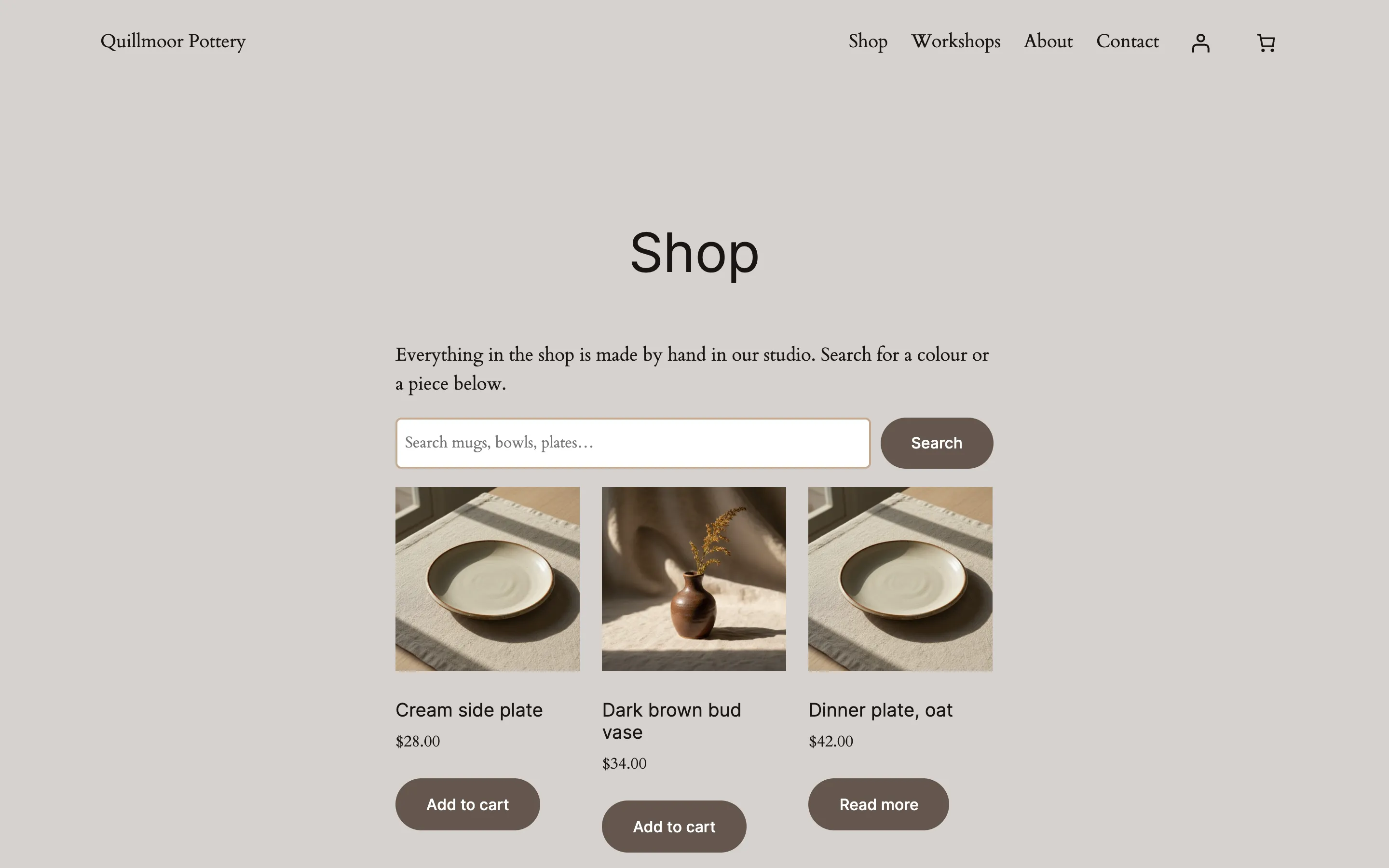
- Reverting the change
- Checking the change
Undone. I checked afterwards, and it's back the way it was.
A real run on our test site, Quillmoor Pottery (WP 7.1.3, Twenty Twenty-Four), . From asking to done, it took 1 minute 4 seconds.
- It writes CSS for the one thing you ask about and adds it to your site's Additional CSS, on a block theme.
- Before anything changes, it shows the CSS and the page as it would look, on a computer and on a phone.
- On an older (classic) theme it can't add CSS itself. It writes the CSS and tells you where to paste it.
Do this on your own site
That's the whole job. The plugin is free: 3 changes to try it, no account. Nothing changes until you press the button, and an undo within 24 hours gives the change back.
How to add custom CSS to WordPress yourself
In WordPress, go to Appearance › Editor › Styles, open Additional CSS, type your rule, then press Review and Save. Older themes keep the box under Customize.
Checked on WP 7.1,
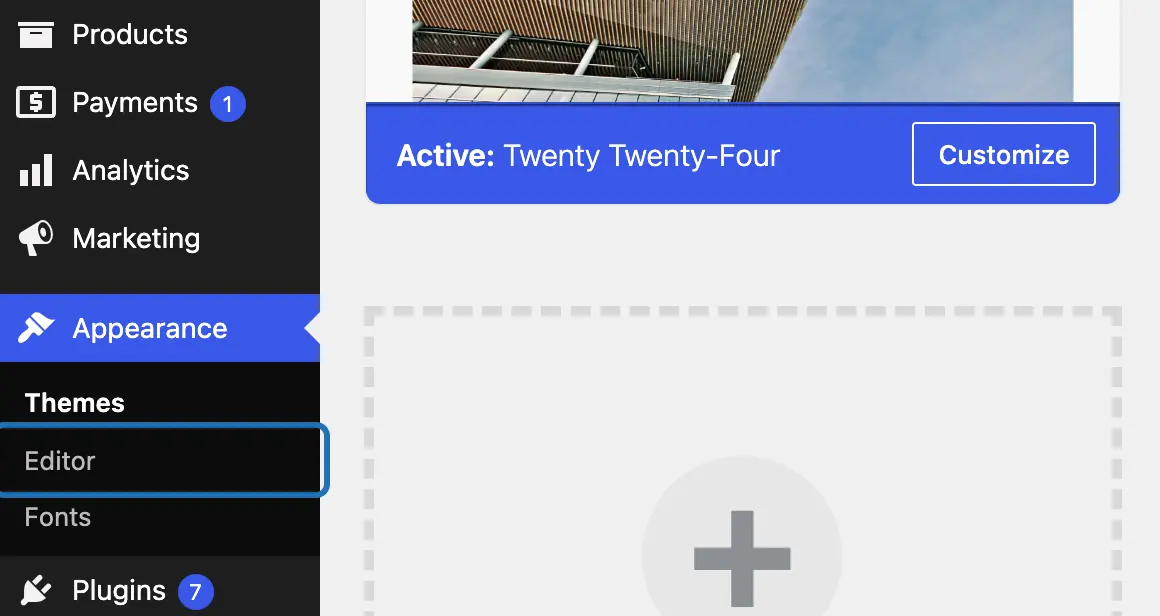
1. In your dashboard, go to Appearance › Editor. See Appearance › Customize instead? You have an older theme: use the note under these steps.
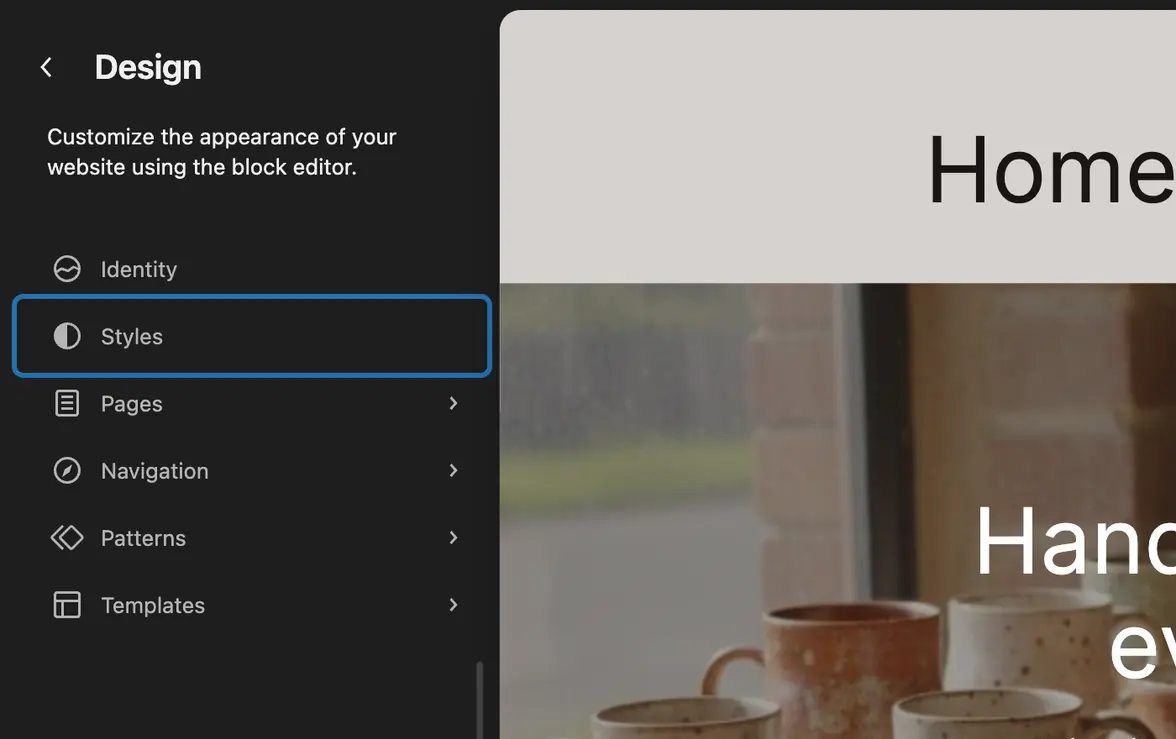
2. Choose Styles in the list on the left.
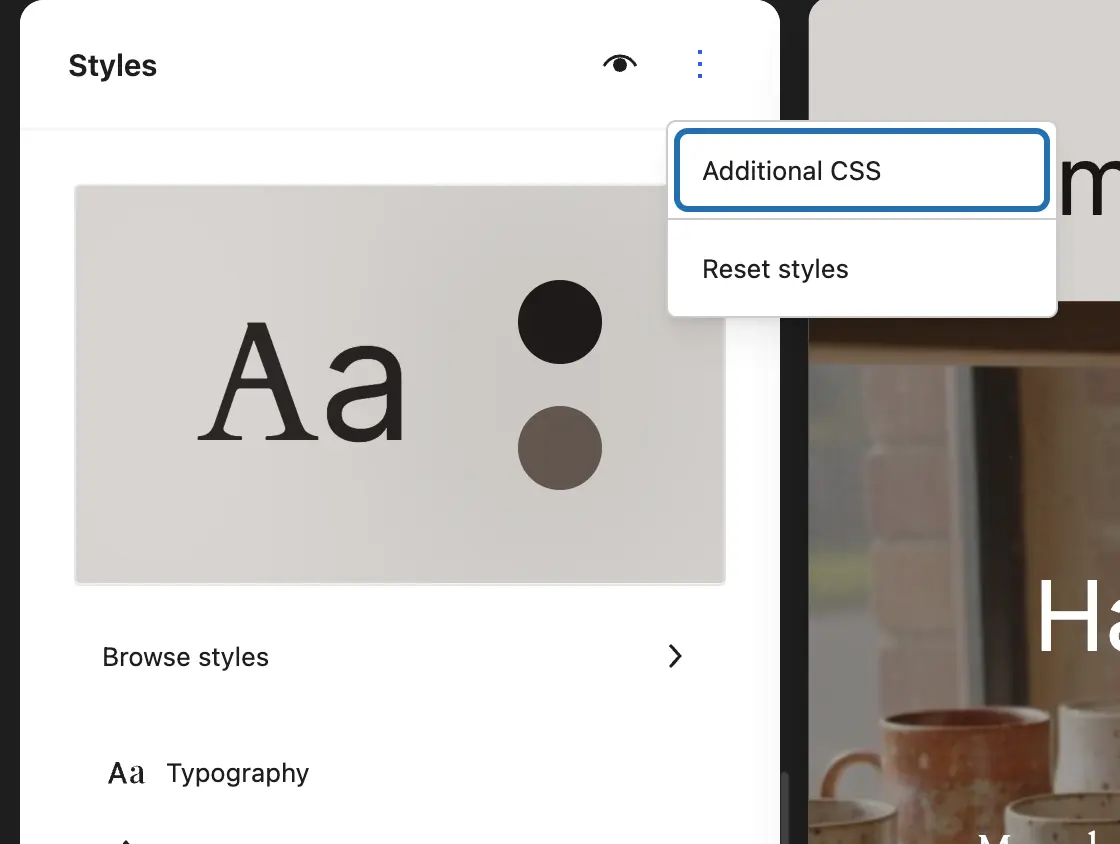
3. Press the ⋮ (More) button at the top of the Styles panel, then choose Additional CSS.
Show the picture
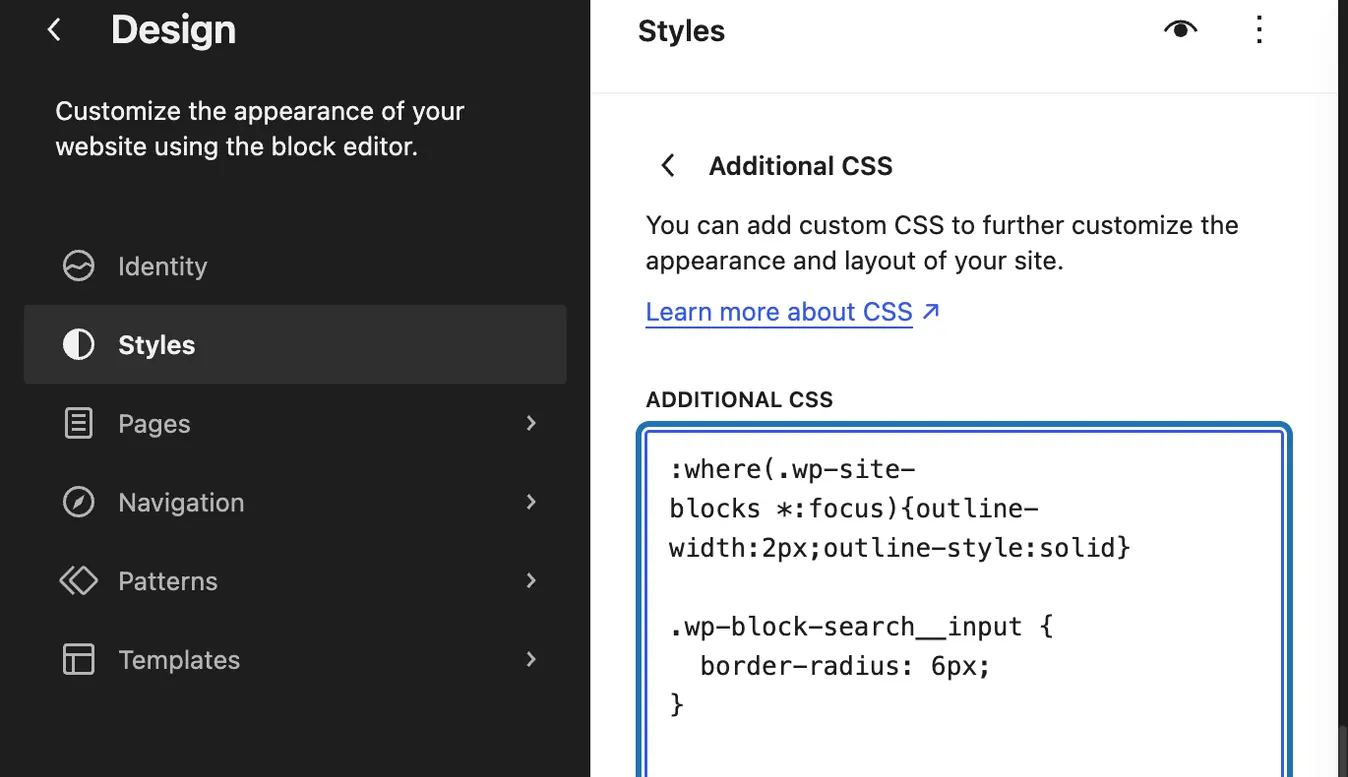
4. Click after anything already in the box and type your rule. This one rounds the search box: “.wp-block-search__input { border-radius: 6px; }”
Show the picture
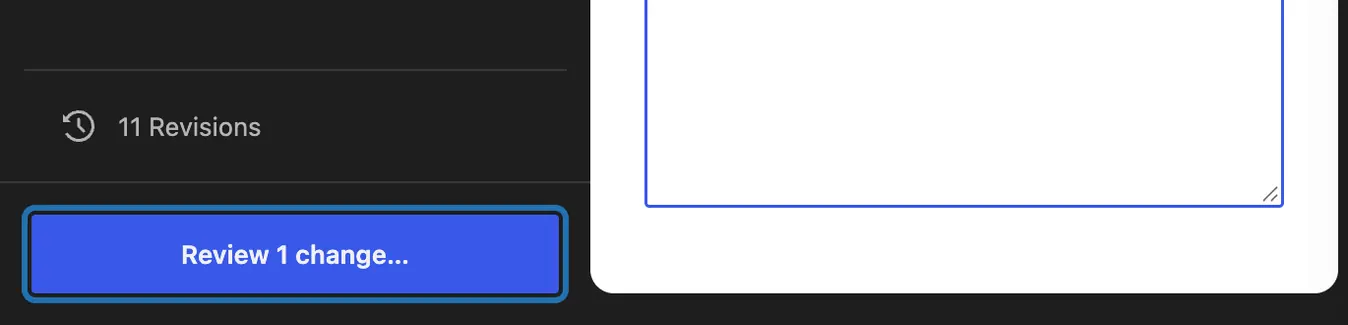
5. Press Review 1 change… at the bottom left of the editor.
Show the picture
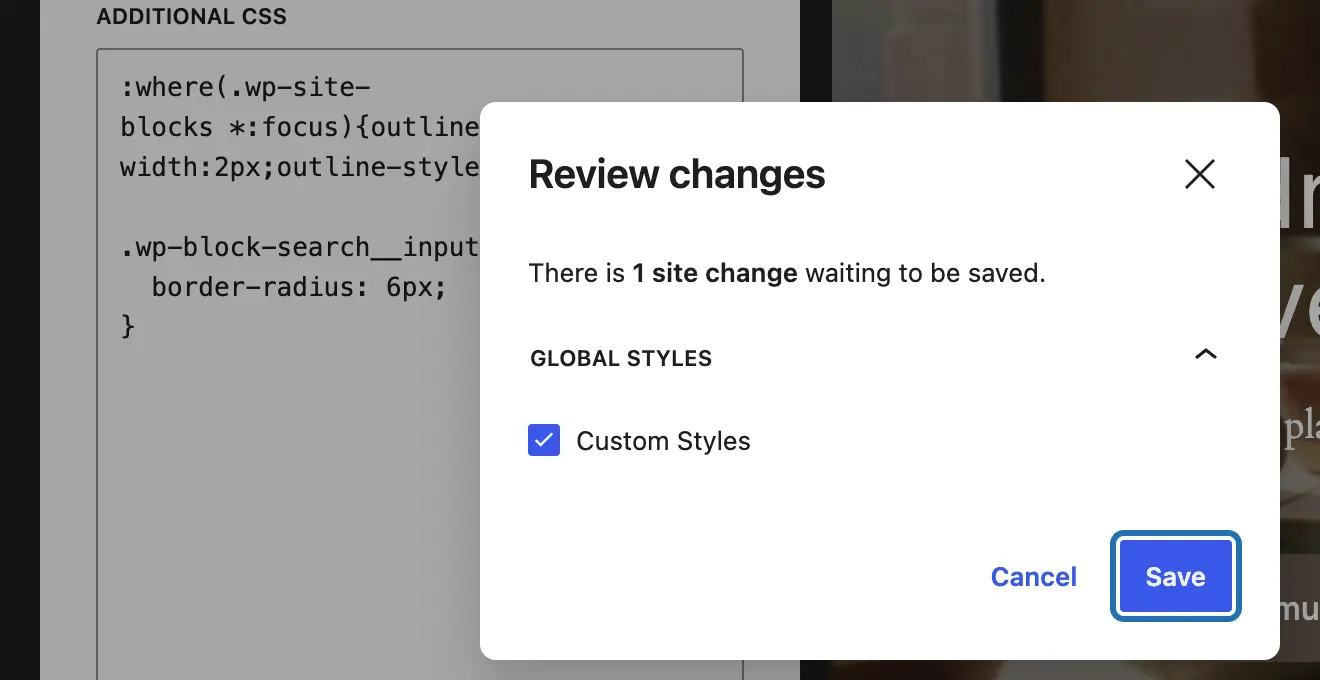
6. In the Review changes box that opens, leave Custom Styles ticked and press Save.
Show the picture
7. Open the page on your site in a new tab and check it, on your phone too. No change? Reload the page.
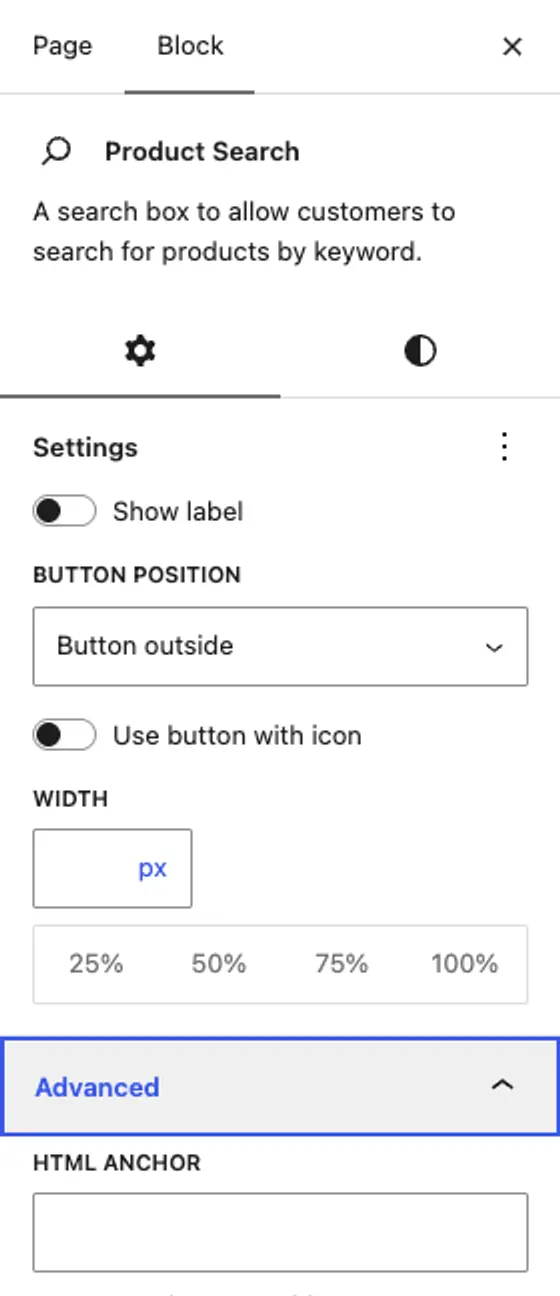
8. For one block only (WP 7.1): select it in the page editor, then open Advanced at the bottom of the Block panel.
Show the picture
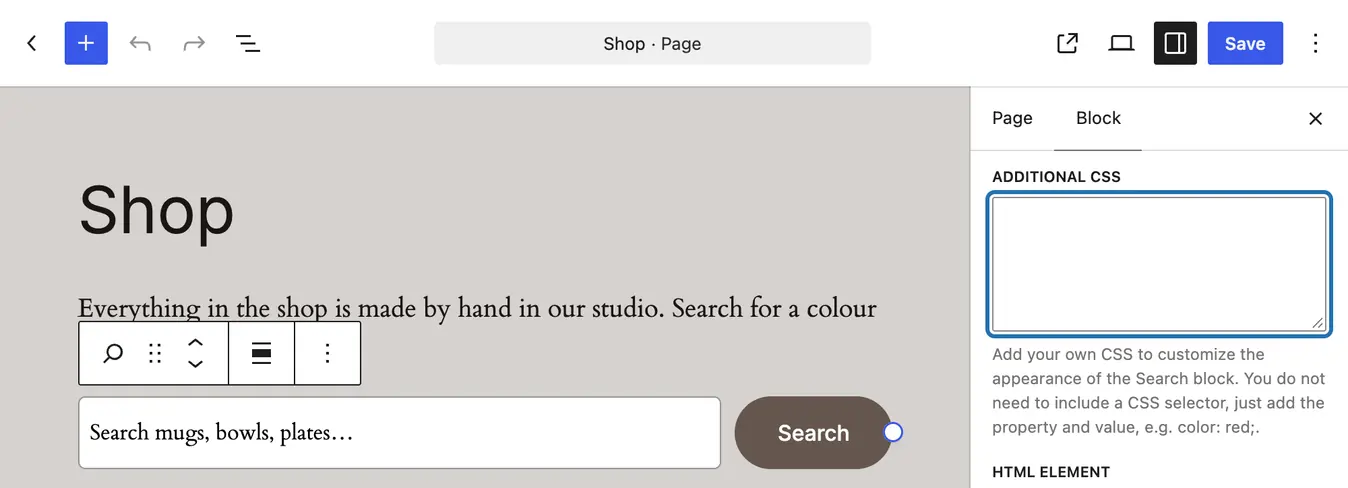
9. Type the look in its Additional CSS box, with no name in front, like “color: red;”. Then press Save at the top right.
Show the picture


These steps are for a block theme, the newer kind of WP theme where your dashboard has Appearance › Editor. On an older (classic) theme, a theme with Appearance › Customize instead of Editor, go there and choose Additional CSS. Type your rules and press Publish. CMSHands can't add CSS there itself. It writes the CSS and tells you where to paste it.
Additional CSS stays when your theme updates, but CSS typed into the theme's style.css file is lost. To find a thing's name, right-click it on your site in Chrome and choose Inspect: the words after class= are its names, like wp-block-search.
Or ask for it in the chat
“Give the search box on my Shop page rounded corners, in the site's brown.”
Why it won't wreck your site
- Nothing changes until you press the button. Every change comes as a card that names it. Nothing happens until you press the button or Not now.
- You see it first. Old words in red, new words in green. For layout, before-and-after pictures on a computer and a phone.
- One click undoes it. When something can't be undone, like deleting a page or a plugin, the card says so before you press.
Where CMSHands stops
- Older (classic) themesIt can't add CSS on a classic theme. It writes the CSS and tells you where to paste it: Appearance › Customize › Additional CSS.
- Your whole site's colors and fontsIts rules reach only the thing you asked about, like the search box. For the whole site, use Appearance › Editor › Styles.
- JavaScript, tracking codes and PHP snippetsIt writes CSS only. Scripts, tracking codes and PHP, the language WP runs on, are things it can't add yet.
- New fonts and background picturesIts CSS can't load files, so it can't bring in a new font or a background picture.
More it can do
- Styling and forms:
Make a form match your site
“Make my contact form match the rest of the site.”
It took 50 seconds on our test site. - Header and footer:
Keep your header on screen
“Make my header stay at the top of the screen when people scroll.”
It took 2 minutes 9 seconds on our test site. - Header and footer:
Change your footer
“Add our opening hours to the footer: Tue–Sat, 10am to 5pm.”
It took 39 seconds on our test site.
Questions about custom CSS
How do I add custom CSS to my WordPress site?
On a block theme, go to Appearance › Editor, choose Styles, open the ⋮ menu and choose Additional CSS. Type your rules, press Review 1 change…, then Save. On an older theme it's Appearance › Customize › Additional CSS, then Publish. Either way, look at the page on a phone too before you leave it.
Will my custom CSS survive a theme update?
Yes, if it's in Additional CSS. WP keeps that with your site, not in the theme's files, so updates leave it alone. CSS typed into the theme's own style.css file is lost at the next update. One catch: Additional CSS belongs to the theme you add it to. Switch themes and it stops showing, until you switch back.
How do I edit CSS in WordPress?
Open the box you added it in, Additional CSS, change the rule and save. To find what a rule should name, open your site in Chrome, right-click the thing and choose Inspect. The words after class= are its names, like wp-block-search for a search box. Change one thing at a time, and check the page after each save.
Do I need a CSS editor plugin for WordPress?
Usually not. WP has its own Additional CSS box, and on WP 7.1 each block has one too, under Advanced. A plugin can help if you want CSS on one page only, or JavaScript as well. With CMSHands you ask in plain words; it writes the CSS and shows it before anything changes. On a block theme it adds the CSS itself; on an older theme it writes it for you to paste. It can't add JavaScript.
Will the CSS from CMSHands change the rest of my site?
No. On a block theme, every rule it writes starts with the name of the thing you asked about, like “.wp-block-search” for search boxes, so nothing else matches. It goes into your site-wide Additional CSS, though, so every search box on the site gets the new look, not only the one on Shop. Undo on the card takes it out again.
Is it free to add CSS with CMSHands?
To start, yes: 3 changes with no account, then 10 a month once you add your email. Questions are free, up to 30 a day.
Written by the CMSHands team. First published .
Try it on your own site
- 1. Download the plugin.A free zip file
- 2. Upload and activate it.Plugins › Add Plugin › Upload Plugin
- 3. Give CMSHands a task.Press Start working, then ask in your words
Works best on WP 6.3 or newer with PHP 8.0 or newer. What works on older sites