
Change text color or size in WP
CMSHands, a free WordPress plugin, adds a chat to your dashboard. Type “Make the first paragraph on the About page orange and a bit bigger.” See it first; one-click undo.
Works on block themes: you'll see Appearance › Editor in your dashboard. How to tell
Works on block themes: you'll see Appearance › Editor in your dashboard. How to tell
Works on sites hosted at





Watch it do this on a real site
You ask
Make the first paragraph on the About page orange and a bit bigger.
Make the first paragraph on the About page orange and a bit bigger.

- Looking for what you meant
- Looking at your theme’s colours and sizes
- Reading one of your pages
- Reading one of your pages
- Preparing the change for your OK
- Previewing your page
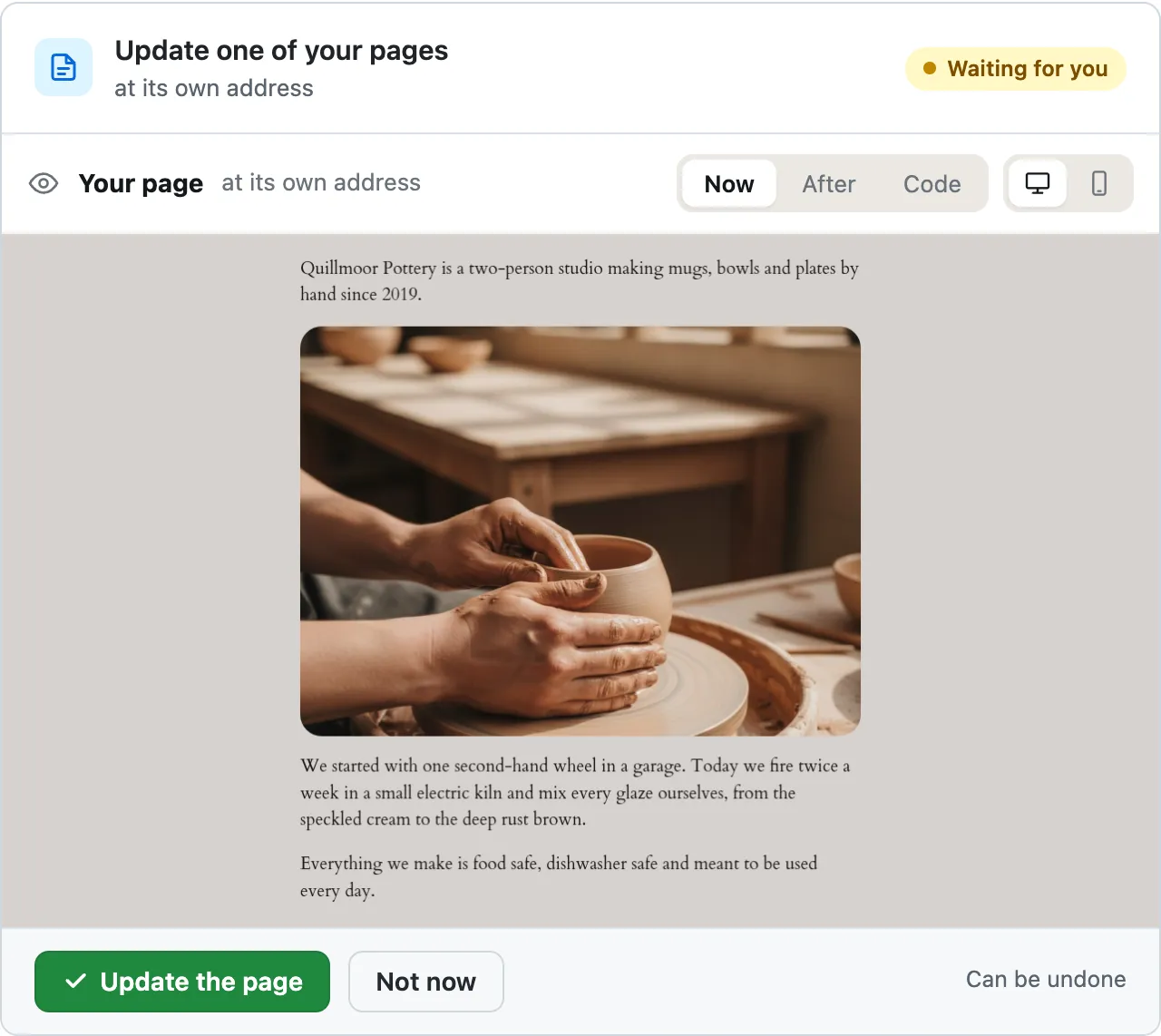
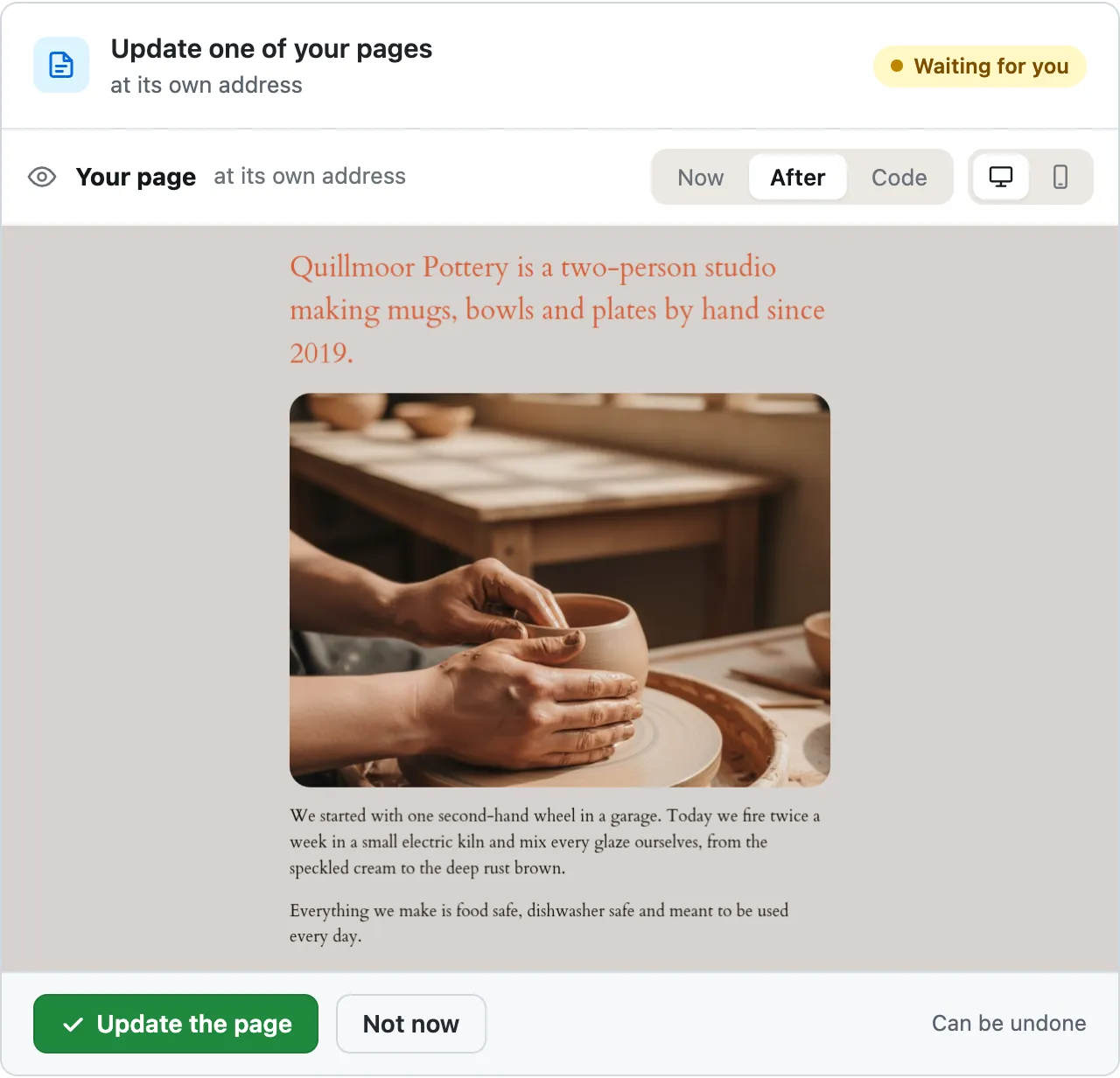
- <!-- wp:paragraph -->
- <p>Quillmoor Pottery is a two-person studio making mugs, bowls and plates by hand since 2019.</p>
- <!-- /wp:paragraph -->
- <!-- wp:paragraph {"textColor":"accent-3","fontSize":"large"} -->
- <p class="has-accent-3-color has-text-color has-large-font-size">Quillmoor Pottery is a two-person studio making mugs, bowls and plates by hand since 2019.</p>
- <!-- /wp:paragraph -->
- <!-- wp:image {"id":28,"sizeSlug":"large","linkDestination":"none","className":"is-style-rounded"} -->
- <figure class="wp-block-image size-large is-style-rounded"><img src="https://mysite.com/wp-content/uploads/2026/10/quillmoor-about-1024x747.jpg" alt="Hands shaping a bowl on the pottery wheel" class="wp-image-28"/></figure>
- <!-- /wp:image -->
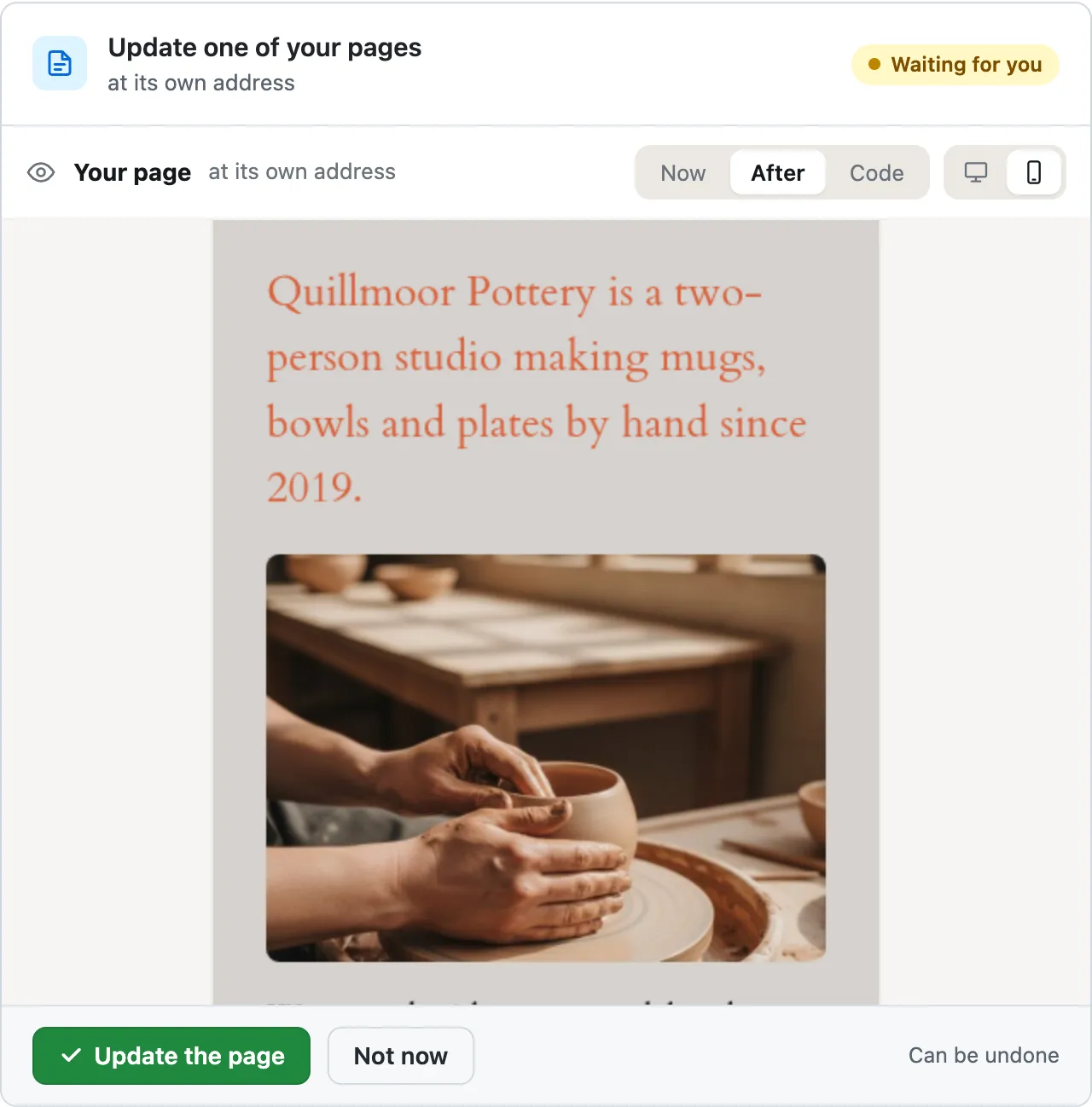
I'll find your About page first.
Ready for you to review — one thing the card can't tell you: this is the smallest step up the theme's sizes go, so it is a fair bit bigger than before rather than slightly. If it's too much, say so and I'll bring it back down.
Make the first paragraph on the About page orange and a bit bigger.
- <!-- wp:paragraph -->
- <p>Quillmoor Pottery is a two-person studio making mugs, bowls and plates by hand since 2019.</p>
- <!-- /wp:paragraph -->
- <!-- wp:paragraph {"textColor":"accent-3","fontSize":"large"} -->
- <p class="has-accent-3-color has-text-color has-large-font-size">Quillmoor Pottery is a two-person studio making mugs, bowls and plates by hand since 2019.</p>
- <!-- /wp:paragraph -->
- <!-- wp:image {"id":28,"sizeSlug":"large","linkDestination":"none","className":"is-style-rounded"} -->
- <figure class="wp-block-image size-large is-style-rounded"><img src="https://mysite.com/wp-content/uploads/2026/10/quillmoor-about-1024x747.jpg" alt="Hands shaping a bowl on the pottery wheel" class="wp-image-28"/></figure>
- <!-- /wp:image -->
- Updating one of your pages
- Checking the change
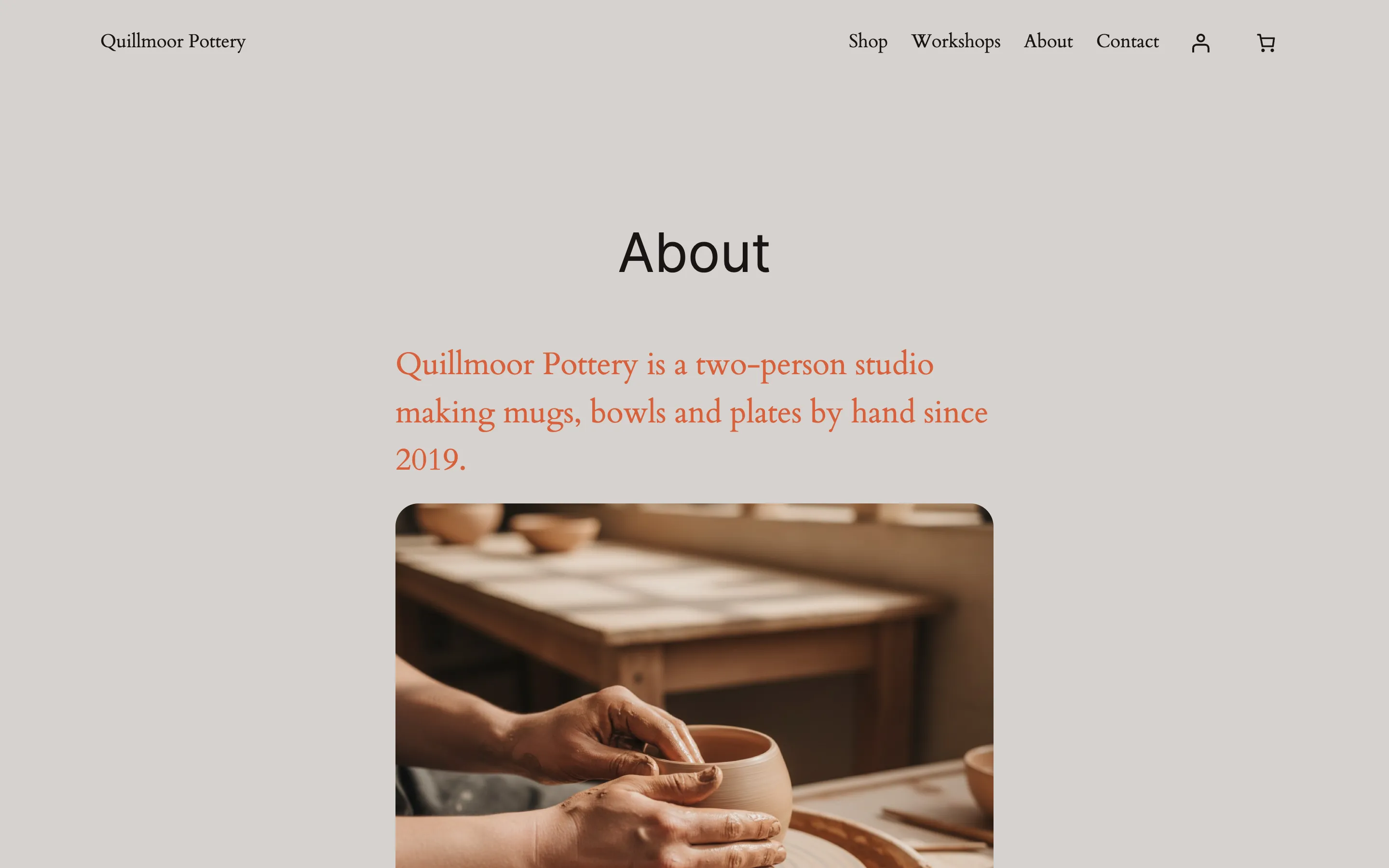
Done. I checked afterwards, and it now says "Quillmoor Pottery is a two-person studio making mugs, bowls and plates by hand since 2019.".
- Reverting the change
- Checking the change
Undone. I checked afterwards, and it's back the way it was.
A real run on our test site, Quillmoor Pottery (WP 7.1.3, Twenty Twenty-Four), . From asking to done, it took 42 seconds.
- It changes the color or size of a paragraph when you ask, using your theme's own colors and sizes, on a block theme.
- Before anything changes, it shows the page as it is and as it would be, on a computer and on a phone.
Do this on your own site
That's the whole job. The plugin is free: 3 changes to try it, no account. Nothing changes until you press the button, and an undo within 24 hours gives the change back.
How to change text color and size in WordPress yourself
In WordPress, open the page, click the paragraph, pick a color and a font size in the Block panel on the right, then press Save.
Checked on WP 7.1,
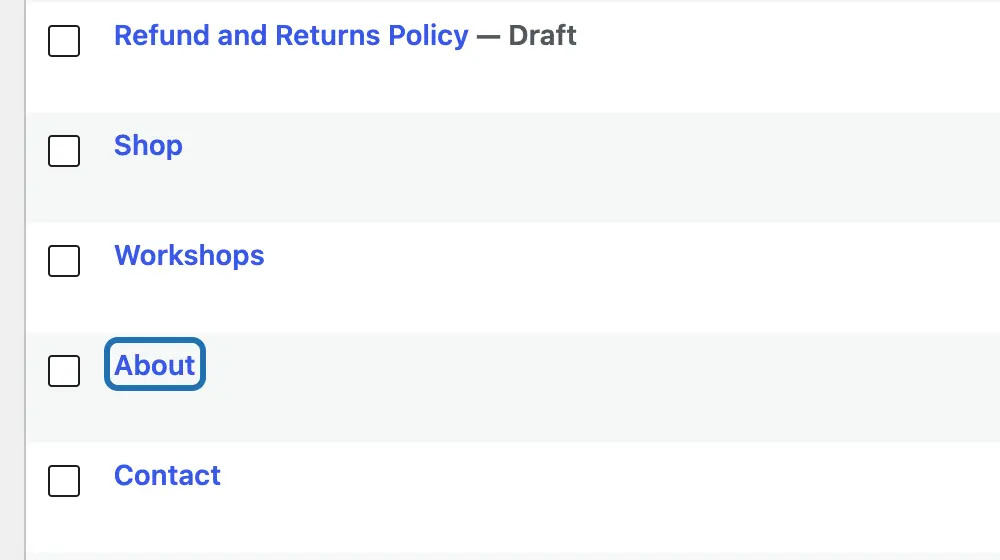
1. In your dashboard, go to Pages › All Pages and click the page's name. It opens in the editor. Posts work the same way.
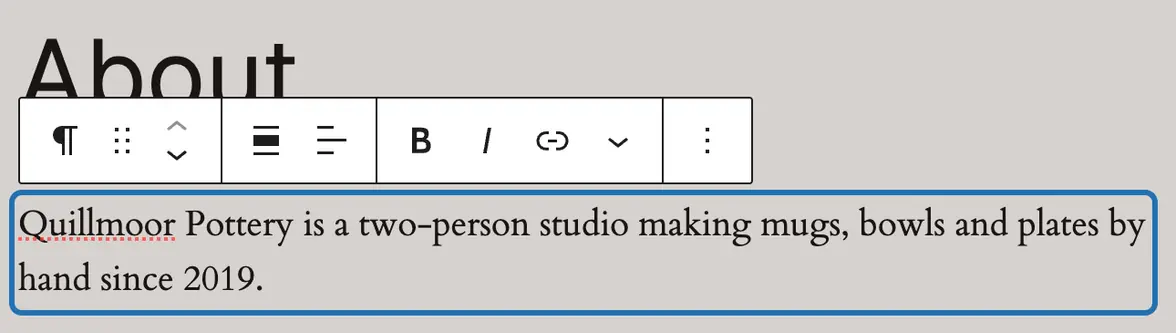
2. Click the paragraph or heading you want to change. A box appears around it, with a small toolbar above.
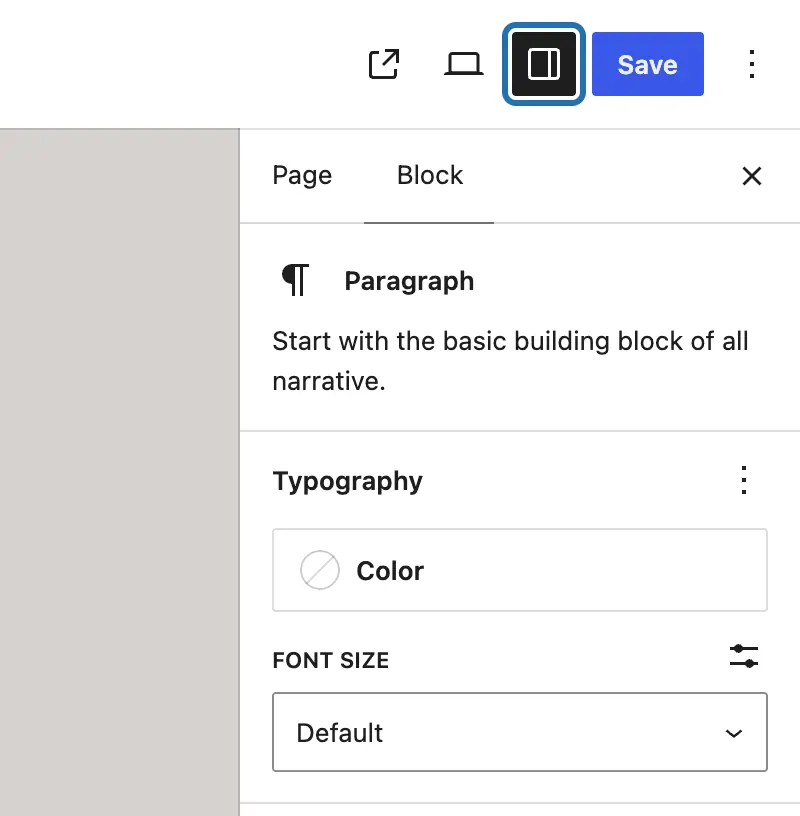
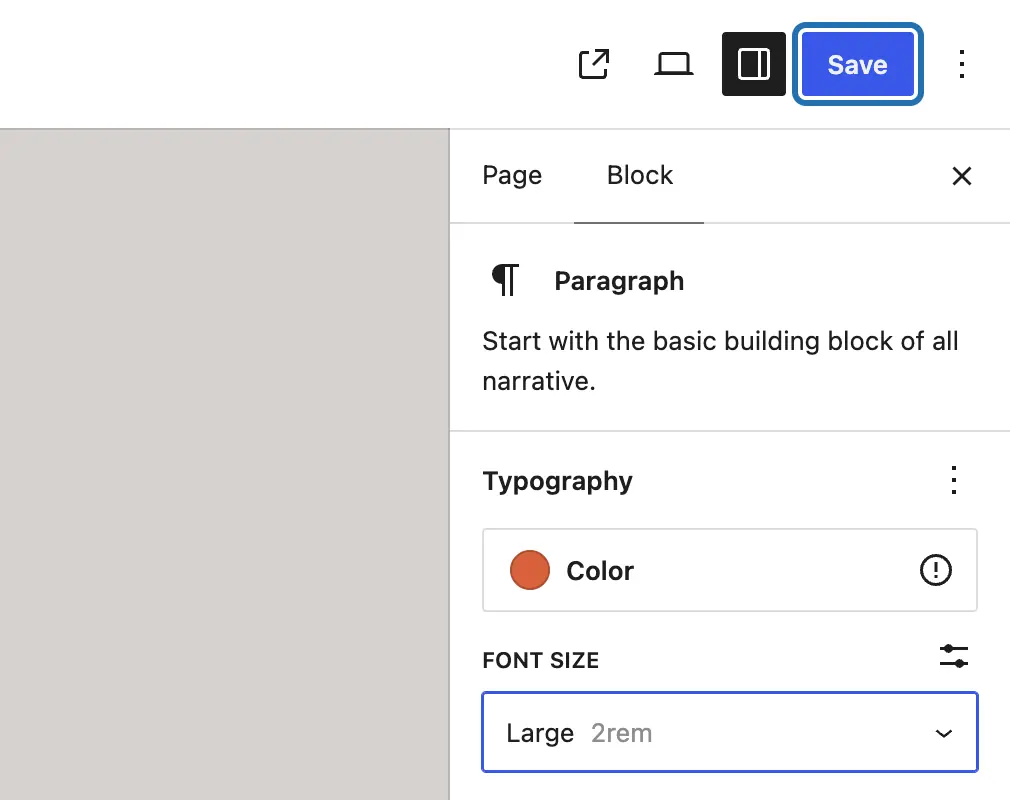
3. Look at the panel on the right, on its Block tab. No panel? Press the Settings button, the square one beside Save.
Show the picture
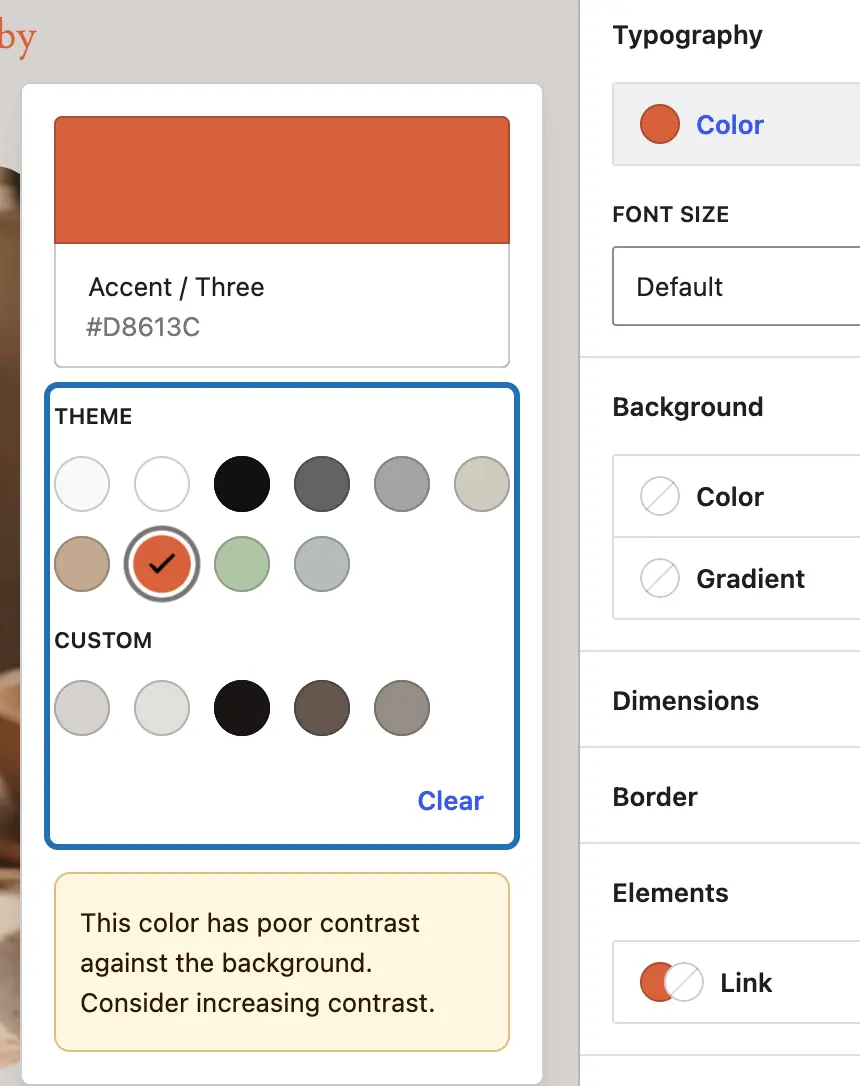
4. For color, open Color under Typography and pick a circle under Theme. Our orange got a contrast warning; if yours does, pick a darker one.
Show the picture
5. For size, open the Font size list below it and choose one, like Large. The paragraph grows in the editor as you choose.
Show the picture
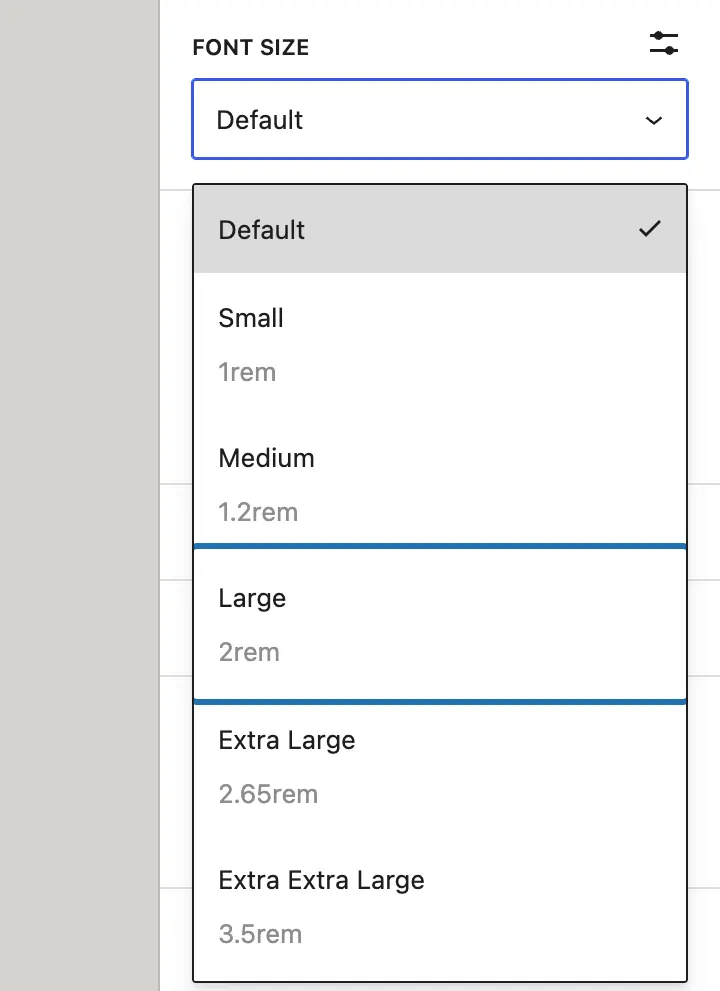
6. Press Save at the top right. Then open the page on your site and look at it on your phone too.
Show the picture
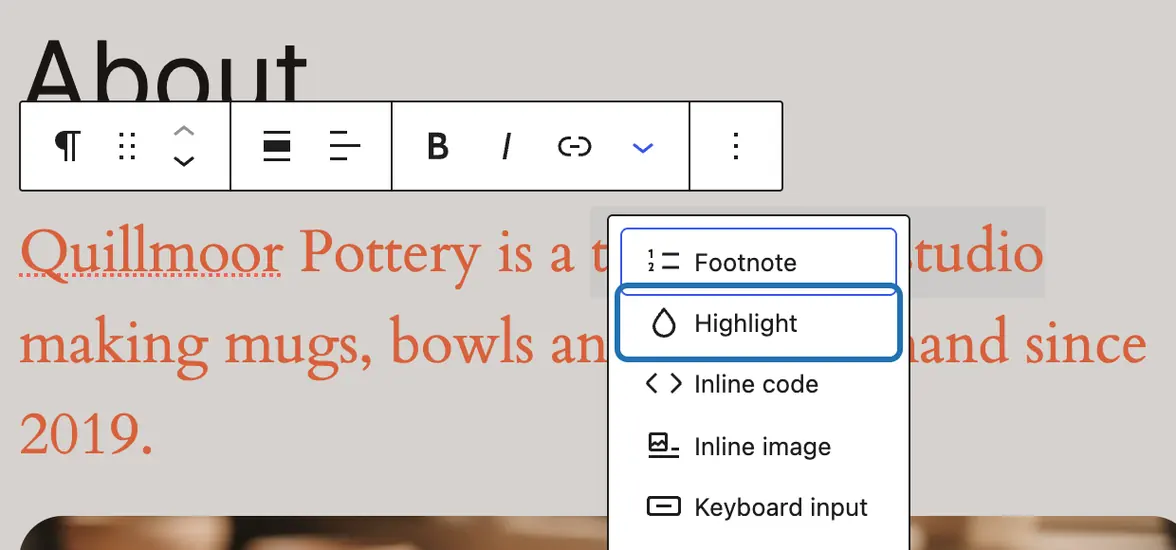
7. To color only a few words, select them, press the small down arrow in the toolbar, choose Highlight and pick a color.
Show the picture


On an older (classic) theme, pages still open in this editor, so the steps usually work there too. Colors and fonts for the whole site, if your theme offers them, are under Appearance › Customize.
Your theme comes with a set of colors and sizes picked to look right together. Choosing from them keeps every page consistent. To change all paragraphs at once on a block theme, go to Appearance › Editor › Styles, then Typography or Colors. That changes the whole site, so try it on one paragraph first.
Or ask for it in the chat
“Make the first paragraph on the About page orange and a bit bigger.”
Why it won't wreck your site
- Nothing changes until you press the button. Every change comes as a card that names it. Nothing happens until you press the button or Not now.
- You see it first. Old words in red, new words in green. For layout, before-and-after pictures on a computer and a phone.
- One click undoes it. When something can't be undone, like deleting a page or a plugin, the card says so before you press.
Where CMSHands stops
- Older (classic) themesIt needs a block theme, the newer kind of WP theme where your dashboard has Appearance › Editor. On a classic theme, use the steps above.
- A color your theme doesn't haveIt picks from your theme's own colors and sizes. For an exact brand color, click the large box above the theme's colors in step 4 and type its code.
- A few words inside a paragraphIt changes whole paragraphs. We haven't tested coloring a few words inside one yet. For that, use Highlight in the last step.
- Your whole site's colors and fontsIt changes one block at a time, not your theme's styles for every page. Use Appearance › Editor › Styles for that.
- Page-builder pagesOn Elementor pages it changes words, links and pictures, not colors. Divi and Beaver Builder pages stay as they are.
More it can do
- Styling and forms:
Make a form match your site
“Make my contact form match the rest of the site.”
It took 50 seconds on our test site. - Header and footer:
Change your footer
“Add our opening hours to the footer: Tue–Sat, 10am to 5pm.”
It took 39 seconds on our test site. - Words and pages:
Add a page
“Add a page called Classes: Saturday classes, 10am, $45, book by email.”
It took 12 seconds on our test site.
Questions about text color and size
How do I change the text color in WordPress?
Click the paragraph or heading in the editor. In the panel on the right, on the Block tab, open Color under Typography and pick a color. Press Save. That's WP 7.1; some older versions put it under Color › Text instead. To color only a few words, select them and use Highlight in the toolbar's down-arrow menu.
How do I change the text size in WordPress?
Click the paragraph, then open the Font size list under Typography in the panel on the right and choose a size, like Large. The sizes in that list come from your theme. The small sliders button beside Font size lets you type your own size instead. Press Save when it looks right.
How do I change the text color on my whole site?
On a block theme, go to Appearance › Editor, choose Styles, then Colors or Typography. A change there reaches every page that uses the theme's default text. Blocks, at the bottom of that panel, sets the style of one kind of block, like all headings. CMSHands doesn't change these site-wide styles; it changes one block at a time.
Will it work with my theme?
The steps above work on most themes, because pages open in the same editor on both kinds. CMSHands itself needs a block theme: your dashboard shows Appearance › Editor. How to tell. On a page made with Elementor, Divi or another page builder, the colors live in the builder, so neither the steps nor CMSHands reach them.
Will CMSHands pick colors that clash with my site?
It picks from your theme's own colors and sizes, the set your theme was designed with. In our test, “orange” became the theme's own orange. It doesn't check whether text stays easy to read, so look at the After picture on a computer and a phone first. Not now leaves the page as it is.
Is it free to restyle text with CMSHands?
To start, yes: 3 changes with no account, then 10 a month once you add your email. Questions are free, up to 30 a day.
Written by the CMSHands team. First published .
Try it on your own text
- 1. Download the plugin.A free zip file
- 2. Upload and activate it.Plugins › Add Plugin › Upload Plugin
- 3. Give CMSHands a task.Press Start working, then ask in your words
Works best on WP 6.3 or newer with PHP 8.0 or newer. What works on older sites