
Update inventory and prices from a spreadsheet
CMSHands, a free WordPress plugin, adds a chat. On the paid plan, attach your sheet of stock counts or prices and say what to change. Nothing changes until you press.
Imports are part of Pro and Max. Free today: change one product's price or stock by asking.
Works on sites hosted at





Watch it do this on a real site
You check one card
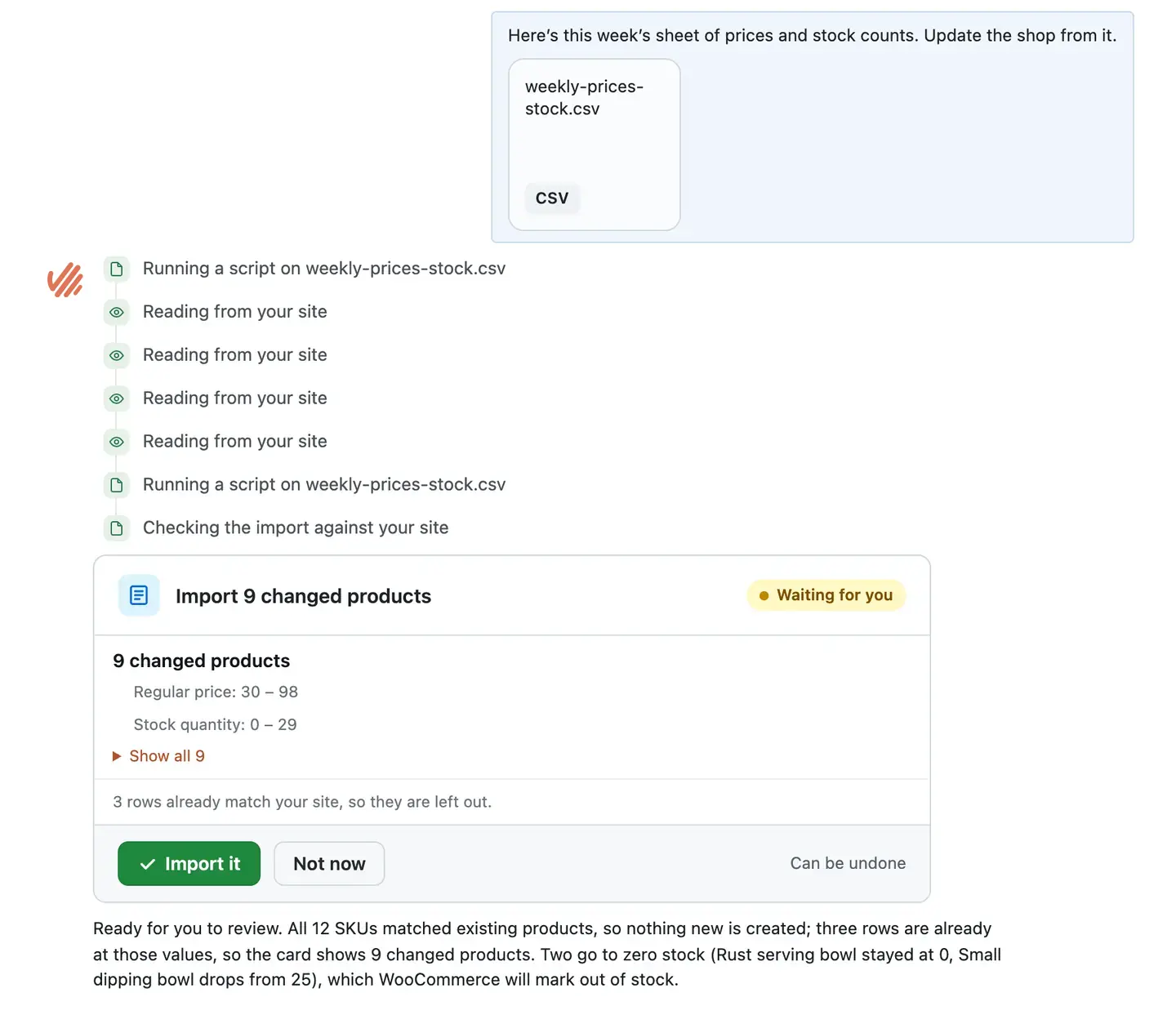
A real run on our test site, Quillmoor Pottery (WP 7.1.3, Twenty Twenty-Four), . From asking to done, it took 1 minute 5 seconds. Imports are part of Pro and Max, from $20 a month.
- Attach your sheet and say what to change. Ours had 12 rows of SKU, name, price and stock, and no template.
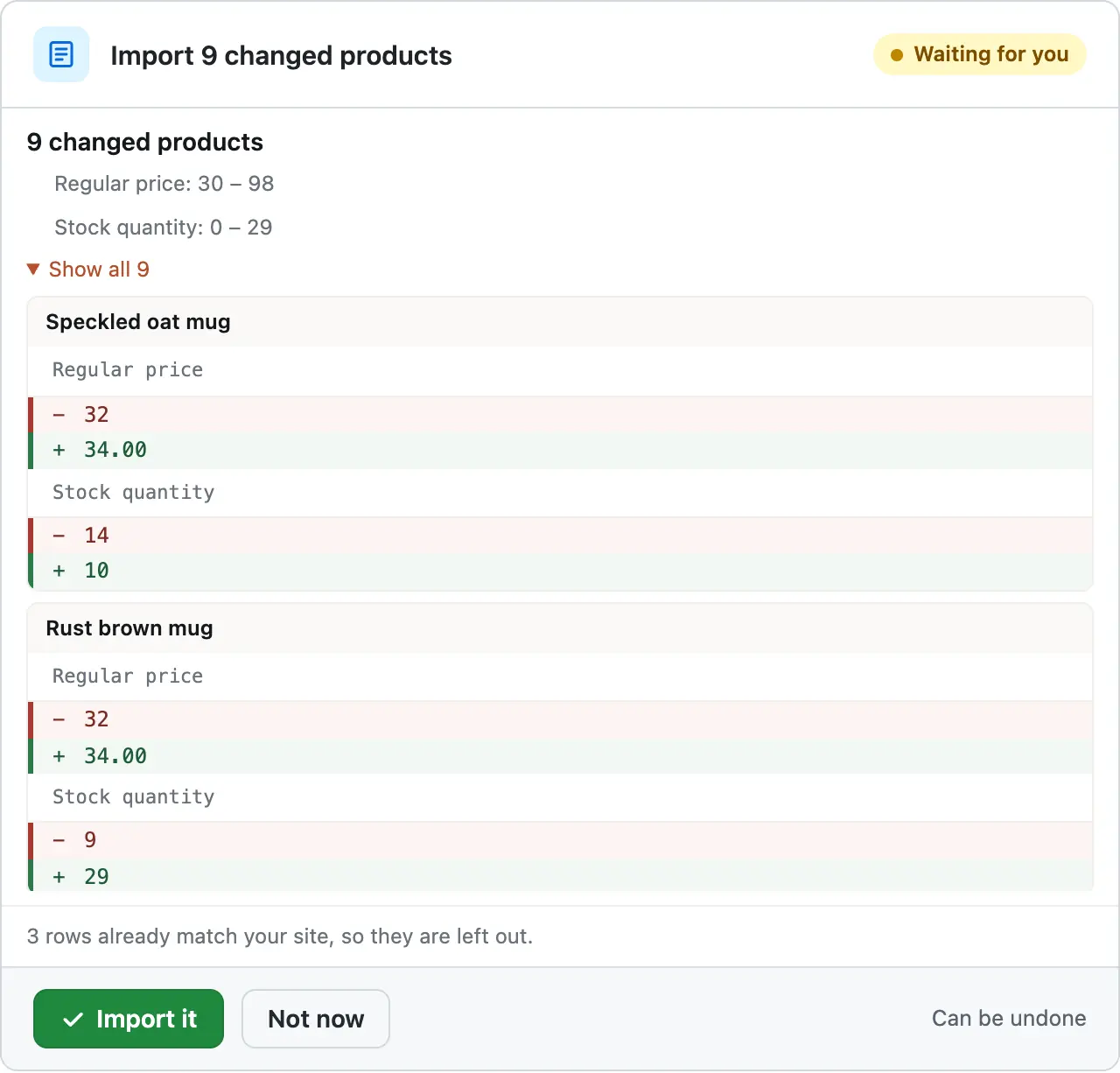
- It finds each product by its SKU. One card showed our 9 changes, old and new side by side, before anything changed.
- Rows that already match your shop are left out. 3 of ours did, and the card said so.
More it does here (3)
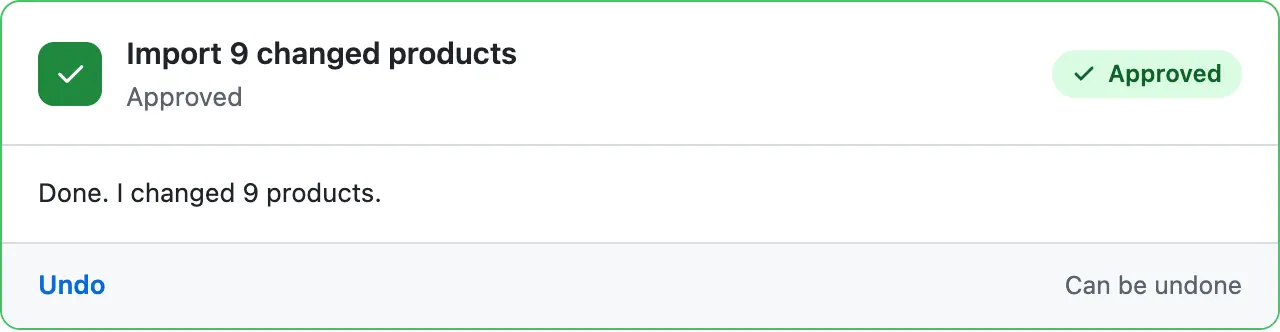
- We pressed Import it and the 9 products changed in about 2 seconds. Paid plan.
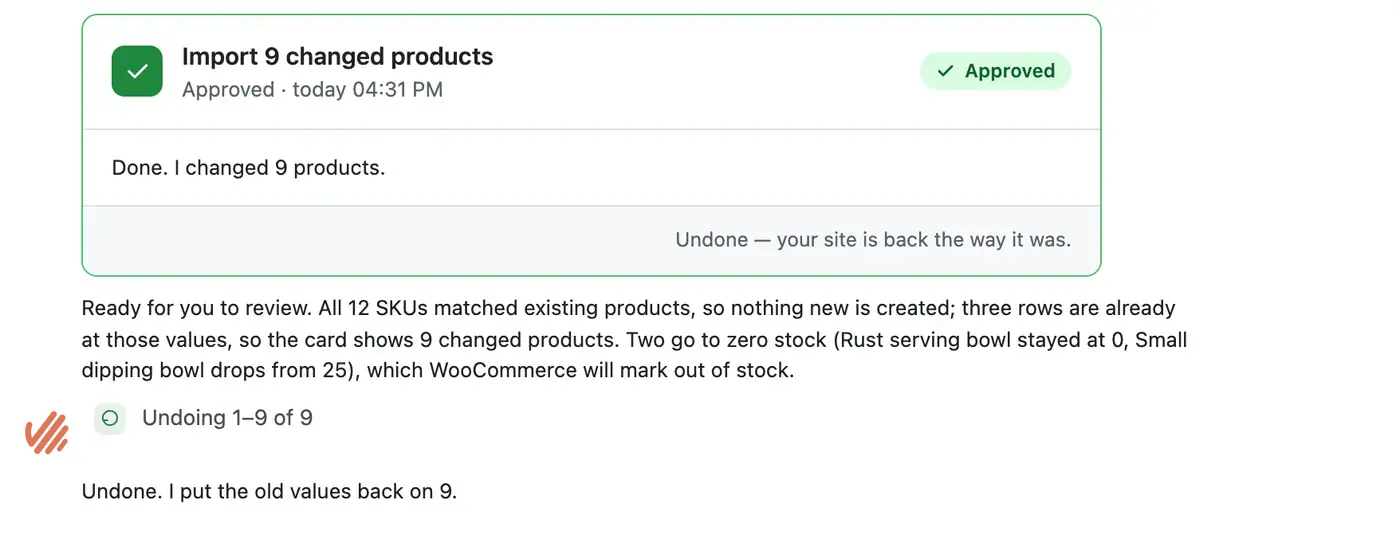
- One Undo puts every old price and count back, except on a product someone edited since. Ours put back all 9.
- Prices alone work the same way. In another run, a sheet of 40 new prices became one card and one press.
Do this on your own site
That's the whole job, on Pro or Max, from $20 a month. The plugin is free today: 3 changes to try it, no account. Nothing changes until you press the button.
How to update stock and prices in WooCommerce yourself
In WooCommerce, go to Products › All Products › Import, choose your CSV, tick Update existing products, check the columns, then press Run the importer.
Updated , checked on WP 7.1,
1. Put your changes in a CSV: a SKU column, plus Regular price, Stock or both. Save an Excel sheet as CSV first.
2. Log in at yoursite.com/wp-admin, go to Products › All Products and press Import at the top.
3. Press Choose File, pick your CSV and tick Update existing products. Press Continue.
4. On Map CSV fields to products, check that SKU, Regular price and Stock each point to the field of the same name.
5. Scroll to the end of the list and press Run the importer.
6. Wait for Import complete! and check the count of products updated. Open one product to see its new price and stock.
With Update existing products ticked, each row finds its product by ID or SKU, and rows that match nothing are skipped. Columns you leave out stay as they are. A number under Stock switches stock tracking on for that product, and with the Out of stock threshold at 0, the default, a 0 marks it out of stock. WooCommerce is a trademark of Automattic Inc.
Or ask for it in the chat
“Here’s this week’s sheet of prices and stock counts. Update the shop from it.”
Why it won't wreck your site
- Nothing changes until you press the button. Every change comes as a card that names it. Nothing happens until you press the button or Not now.
- You see it first. Old words in red, new words in green.
- One click undoes it. When something can't be undone, like deleting a page or a plugin, the card says so before you press.
- It won't overwrite your edits. It reads your site again before it changes or undoes anything. If you edited the same thing, it stops and tells you.
What it won't do here
- Imports need Pro or MaxOn the free plan, use the steps above, or ask for one product at a time: one card, one free change.
- Simple products onlyNo variations, like one mug in 3 glazes. Your store’s own importer handles products with sizes or colors.
- Up to 2,000 products at a timeA bigger catalog goes in as several imports, one file after another. Each file can be up to 10 MB.
- It doesn't fetch your supplier's list on a scheduleSend each new list in the chat. Each one gets its own card for you to check.
- No exports, and no deleting from a fileIt can't write your stock out to a CSV, or remove the products a file lists. Products › All Products › Export does the first.
More it can do
- Your shop:
Change a price by asking
“Change the price of the Speckled oat mug to $34.”
It took 15 seconds on our test site. - Your shop:
Restock and mark sold out
“I just got 20 more Rust brown mugs in, so set its stock to 29. And the Small dipping bowl is sold out, mark it out of…”
It took 18 seconds on our test site. - Your shop:
Hide sold-out products
“Hide products that are out of stock from my shop pages.”
It took 15 seconds on our test site. - Store imports:
A product template to fill in
“Give me a CSV template I can fill in to add products to my shop.”
It took 50 seconds on our test site.
Questions
What does Manage stock do in WooCommerce?
It makes your store keep a count for each product. Each order takes its items off the count. When a count reaches the Out of stock threshold, 0 unless you change it, the product shows as out of stock. With it off, you set In stock or Out of stock by hand on each product. WooCommerce is a trademark of Automattic Inc.
Can I update prices and stock in bulk without another plugin?
Yes. Your store's own importer updates products as well as adding them: tick Update existing products on its first screen, as in the steps above. It matches each row by ID or SKU and skips rows that match nothing. Columns you leave out stay as they are, so a sheet of SKU and Stock changes only the counts.
How do I undo a price or stock update?
Your store's importer has no undo button. Keep a copy first: Products › All Products › Export writes your current prices and stock to a CSV you can import back the same way. In CMSHands, one Undo on the card puts the old prices and counts back, except on a product someone edited since.
Will CMSHands change columns I didn't ask about?
Not in our runs. One supplier sheet we sent had a qty column, but we asked only for new products and prices. It left the stock counts alone and said so under the card. Rows that wouldn't change anything are skipped too.
Can CMSHands update my prices and stock from a sheet?
Yes, on Pro and Max. You attach a CSV or Excel file and say what to change. It matches each row by SKU, shows one card with old and new values, and changes nothing until you press Import it. On the free plan, it answers stock questions, like which products are out of stock.
Written by the CMSHands team. First published .
Try the free plugin on your own shop
- 1. Download the plugin.A free zip file
- 2. Upload and activate it.Plugins › Add Plugin › Upload Plugin
- 3. Give CMSHands a task.Press Start working, then ask in your words
Works best on WP 6.3 or newer with PHP 8.0 or newer. What works on older sites