
Write and publish a blog post in WP
CMSHands, a free WordPress plugin, adds a chat to your dashboard. Give it your notes. It writes the post and adds it when you press the button. Undo removes it.
Goes live when you press the button. To read it first, ask for a draft. What it won't do
Goes live when you press the button. To read it first, ask for a draft. What it won't do
Works on sites hosted at





Write a WordPress post with AI, then approve it
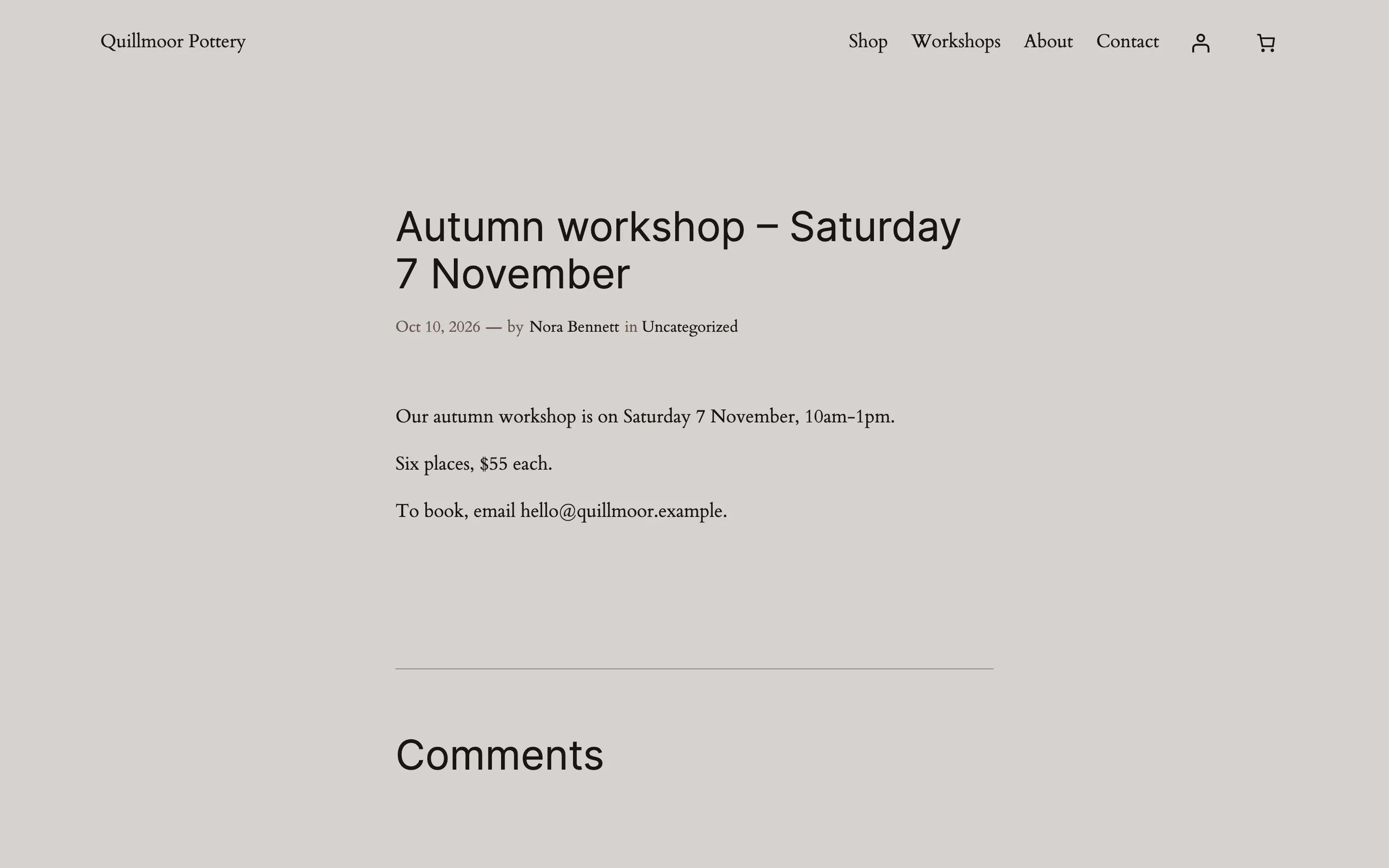
The card names the post but doesn't show its words. Step 4, It's on the site, shows the post it wrote from the notes, live right after.
You ask
Write a short post announcing our autumn workshop from these notes, and publish it: Sat Nov 7, 10am–1pm, $55, six places, book by emailing hello@quillmoor.example.
Write a short post announcing our autumn workshop from these notes, and publish it: Sat Nov 7, 10am–1pm, $55, six places, book by emailing hello@quillmoor.example.

- Looking for what you meant
- Reading one of your posts
- Preparing the change for your OK
There was no post about this yet, and this one goes live as soon as you approve it. It isn't linked from your menu or the Workshops page — say the word if you want a link adding.
- Adding a post
- Checking the change
Done. I checked afterwards, and the change is in place.
- Reverting the change
- Checking the change
Undone. I checked afterwards, and it's back the way it was.
A real run on our test site, Quillmoor Pottery (WP 7.1.3, Twenty Twenty-Four), . From asking to done, it took 20 seconds.
- It writes a new blog post from your notes and adds it when you press the button. Undo removes it.
- Ask for a draft instead and it saves one your visitors can't see until you publish it.
Do this on your own site
That's the whole job. The plugin is free: 3 changes to try it, no account. Nothing changes until you press the button, and an undo within 24 hours gives the change back.
How to make a blog post in WordPress yourself
In WordPress, go to Posts › Add Post, type a title and your post, pick a category, then press Publish twice.
Updated , checked on WP 7.1,
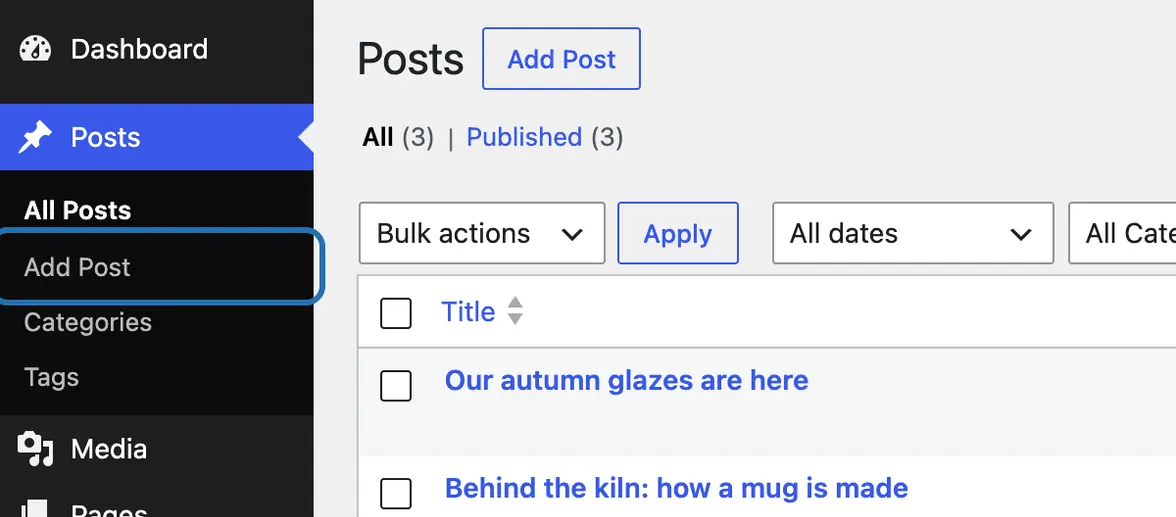
1. Log in to your dashboard (yoursite.com/wp-admin) and go to Posts › Add Post. The Add Post button above your list of posts does the same.
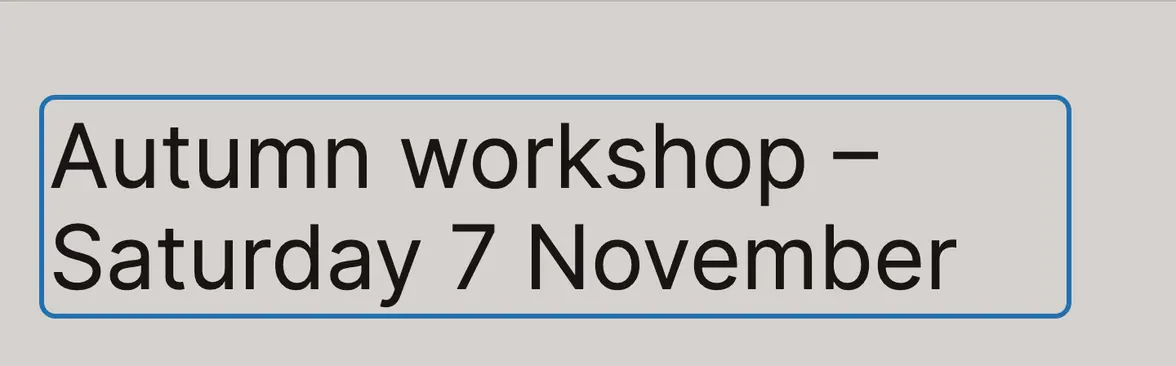
2. Click Add title and type the post's title. WP also makes the post's web address from it.
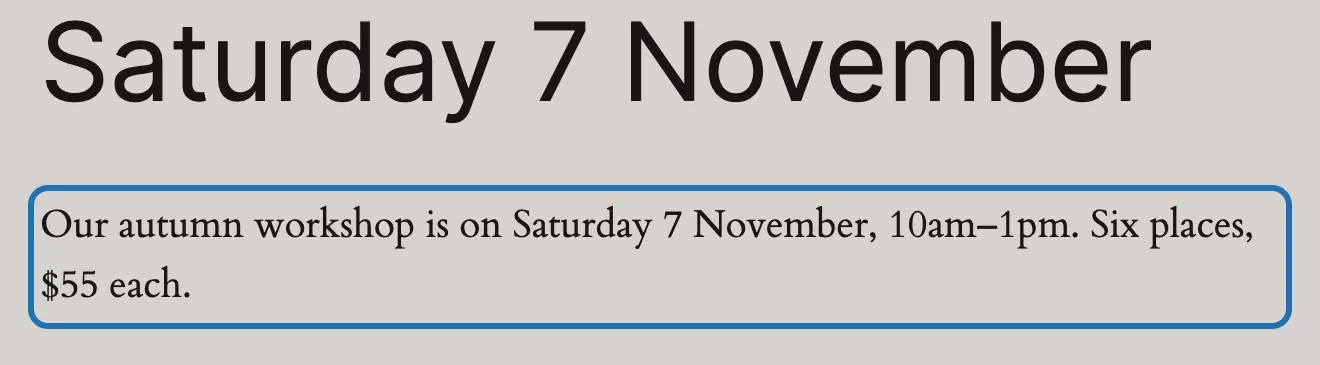
3. Press Enter and type your post. Each paragraph is its own block: press Enter again to start the next one.
Show the picture
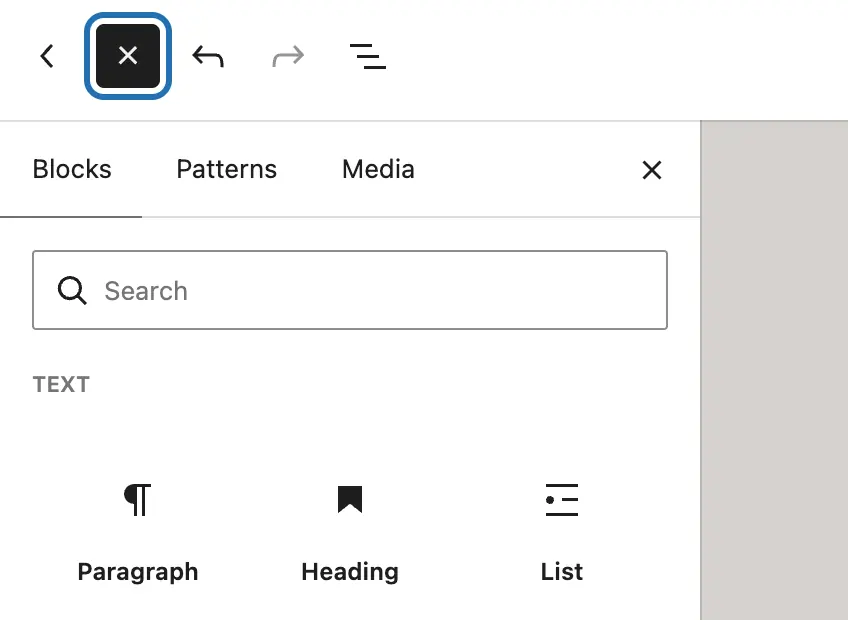
4. For a heading, picture or list, press + (top left; it turns into ×) and pick a block. Or type / on an empty line.
Show the picture
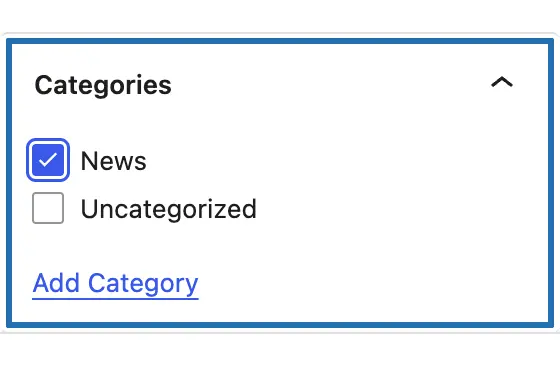
5. In the Post panel on the right, open Categories and tick one, like News. If you tick none, WP files it under Uncategorized.
Show the picture
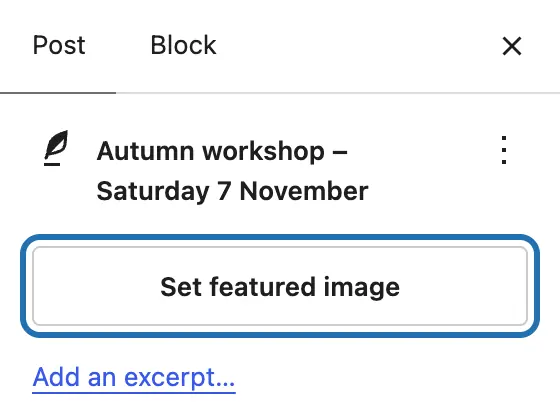
6. Press Set featured image in the same panel to pick the picture many themes show with the post and in post lists.
Show the picture
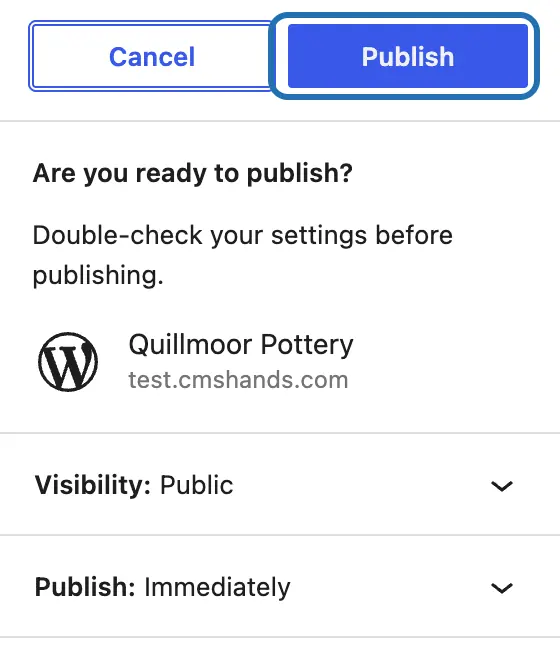
7. Press Publish at the top right, check the panel, then press Publish again. To post it later, set a date under Publish: Immediately first.
Show the picture


If your site has the Classic Editor plugin, the post opens as one big text box. Type the title at the top and the post below, tick a category on the right, and press Publish.
Not ready yet? Save draft, next to Publish, keeps the post hidden until you come back to it. To change a post that's already live, open it from Posts › All Posts, edit it and press Save. Posts show newest first on your blog page; if you don't have one, see how to make a Blog page.
Or ask for it in the chat
“Write a short post announcing our autumn workshop from these notes, and publish it: Sat Nov 7, 10am–1pm, $55, …”
Why it won't wreck your site
- Nothing changes until you press the button. Every change comes as a card that names it. Nothing happens until you press the button or Not now.
- One click undoes it. When something can't be undone, like deleting a page or a plugin, the card says so before you press.
Where CMSHands stops
- Reading the words before you pressThe card says Add a post without the words. Ask for a draft instead: in our second test it saved one, off the site until you publish it.
- Pictures and featured imagesIt writes the words. It can't make a picture. Send one in the chat for the featured image, or add it yourself, as in step 6.
- Choosing a categoryIn our test run the post went into Uncategorized, the default. We haven't tested picking one yet. Change it in the post's settings, as in step 5.
- Adding the post to your menuA new post isn't added to your menu on its own. Adding a link is its own change: add a link to your menu.
- SEO plugin boxesSEO plugins such as Yoast SEO add a box for the post's search title and description. It writes the post but leaves that box to you.
More it can do
- Words and pages:
Rename or add a blog category
“Rename the blog category "News" to "Studio news" and add a new category "Glazes".”
It took 15 seconds on our test site. - Health and checkups:
A health check of your site
“Give me a quick health report.”
It took 8 seconds on our test site. - Styling and forms:
Make a form match your site
“Make my contact form match the rest of the site.”
It took 50 seconds on our test site.
Questions about blog posts
Where do my blog posts show up on my site?
On your posts page. Settings › Reading decides where that is: either your home page shows your latest posts, or a page you pick does. If your home page is a fixed page and no posts page is chosen, there may be no page that lists them, so make a Blog page first. Each post also gets its own web address.
What's the difference between a post and a page?
Posts are dated news and updates. They show newest first on your blog page, in your feed and under their categories. Pages are for things that stay, like About or Contact, and have no date or category. A workshop announcement is a post; your Workshops page is a page. To add a page instead, see how to add a new page.
How do I add a table of contents to a WordPress blog post?
WP 7.1 has no table of contents block of its own. A plugin from the WP plugin directory adds one: the free plugins at wordpress.org, the ones Plugins › Add Plugin searches (Add New Plugin on older WP). Search “table of contents” there, or ask CMSHands to pick and install one. Without a plugin, give each heading an anchor under Advanced › HTML anchor, then link to them from a list at the top.
Can an AI assistant write a WordPress blog post for me?
Yes. Give CMSHands your notes in the chat. It writes the post and adds it when you press the button. In our test run it turned the notes into a title and 3 short lines, and published them as asked. The card doesn't show the words first. To read it before visitors do, ask for a draft: in a second run it saved one and the site didn't change. Open it from Posts › All Posts and press Publish.
How do I unpublish or delete a blog post?
Go to Posts › All Posts, hover over the post and click Trash. It leaves your site at once, and WP keeps it in the trash for 30 days. To hide it but keep it, open the post and change Status to Draft in the Post panel. With CMSHands, Undo on the card took the post off the site in our test run.
Is it free to write a post with CMSHands?
To start, yes: 3 changes with no account, then 10 a month once you add your email. Questions are free, up to 30 a day. Bringing many posts over from another WP site is part of Pro and Max: import a WP export file.
Written by the CMSHands team. First published .
Try it on your next blog post
- 1. Download the plugin.A free zip file
- 2. Upload and activate it.Plugins › Add Plugin › Upload Plugin
- 3. Give CMSHands a task.Press Start working, then ask in your words
Works best on WP 6.3 or newer with PHP 8.0 or newer. What works on older sites